What you should know first: read Part 5: Temperature, Top-p and Controlling Model Output and Part 3: Your First LLM API Calls. You only need a terminal and a laptop with at least 8 GB of RAM.
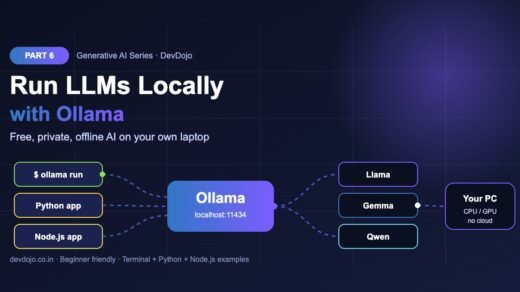
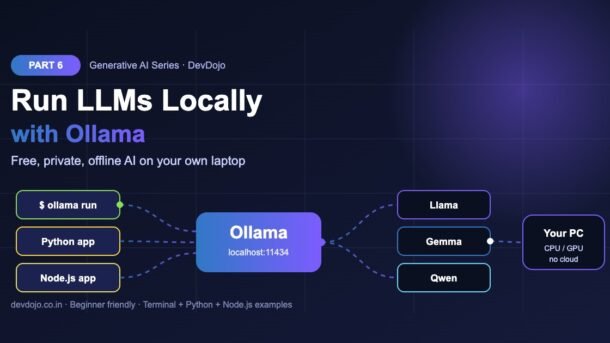
So far in this series every model we used lived in someone else’s data centre: you sent a prompt over the internet, paid per token and trusted the provider with your data. In this part you will learn how to run LLMs locally with Ollama, a free open-source tool that downloads open models such as Llama, Gemma and Qwen and runs them on your own computer. You will install Ollama, pull your first model, chat with it in the terminal, call it from Python and Node.js, stream answers, reuse your OpenAI code from Part 3 and even build your own custom model with a Modelfile. No API key, no bill, and it works offline.
- Ollama is a free tool that downloads and runs open models (Llama, Gemma, Qwen, Mistral, gpt-oss and more) on your own computer.
- Install it, then use
ollama pull llama3.2to download a model andollama run llama3.2to chat with it in the terminal. - Ollama runs a local server at
http://localhost:11434. Your apps talk to it with theollamapackage (Python and JavaScript) or plain HTTP. - It also offers an OpenAI-compatible API at
/v1, so your Part 3 code works locally by changing only the base URL. - Pick a model that fits your RAM: about 1–4B parameters for 8 GB, 7–8B for 16 GB, and bigger models need 32 GB or a good GPU.
- Local models give you privacy, zero per-token cost and full control (temperature, top-k, seed, context size), but they are smaller and slower than top cloud models.
Full Generative AI roadmap (30 parts)
Beginner
- What Is Generative AI and How Do LLMs Work?
- Tokens, Context Windows and Model Parameters
- Your First LLM API Calls in Python and Node.js (OpenAI, Anthropic, Gemini)
- Prompt Engineering Basics: Roles, Instructions and Examples
- Temperature, Top-p and Controlling Model Output
- Run LLMs Locally with Ollama You are here
- Streaming Responses and Building a Simple Chat UI Coming soon
- Structured Outputs: Getting Reliable JSON from LLMs Coming soon
Intermediate
- Embeddings Explained: Turning Text into Vectors Coming soon
- Vector Databases: pgvector, Chroma and Pinecone Coming soon
- RAG Fundamentals: Retrieval-Augmented Generation Coming soon
- Document Loading and Chunking Strategies Coming soon
- Better RAG: Hybrid Search, Re-ranking and Query Rewriting Coming soon
- Function Calling and Tool Use Coming soon
- Conversation Memory and Long Context Management Coming soon
- Multimodal AI: Vision, Images and Audio Inputs Coming soon
- How Image Generation Works: Diffusion Models Basics Coming soon
- LangChain vs LlamaIndex: When to Use a Framework Coming soon
- Testing LLM Apps: Evals, Metrics and Test Sets Coming soon
- Cutting Cost and Latency: Caching, Batching and Model Choice Coming soon
Advanced
- Fine-Tuning vs Prompting vs RAG: Choosing the Right Tool Coming soon
- Fine-Tuning an Open Model with LoRA Coming soon
- Transformers Deep Dive: Attention Explained Simply Coming soon
- Reasoning Models and Thinking Time Coming soon
- Guardrails, Safety and Prompt Injection Defence Coming soon
- Monitoring and Tracing LLM Apps in Production Coming soon
- Serving Open Models: vLLM, Quantization and GPUs Coming soon
- Building a Production GenAI App End to End Coming soon
- Responsible AI: Privacy, Licensing and Bias Coming soon
- Final Project: Build Your Own AI Knowledge Assistant Coming soon
Why run LLMs locally?
In Part 3 you called OpenAI, Claude and Gemini over the internet. Those models are the smartest available, but every request costs money, needs an API key and sends your text to another company. A local LLM flips all of that. The model file sits on your disk and runs on your own CPU or GPU.
The trade-off is quality and speed. A 3-billion-parameter model on a laptop will not match the biggest cloud models at hard reasoning, but it is surprisingly good at summaries, simple Q&A, rewriting text and code help. Many real apps use both: a local model for cheap, private tasks and a cloud model for the hardest ones.
What is Ollama and how it works
Ollama is a free, open-source app for macOS, Windows and Linux that makes local models as easy as Docker made containers. It does three jobs for you:
- Downloads models from its library (ollama.com/library) in a compressed (quantized) format called GGUF, so an 8B model needs about 5 GB instead of 16 GB.
- Runs a local server on
http://localhost:11434that loads the model into RAM or GPU memory and answers requests. - Gives you simple tools: a command-line chat, a REST API, official Python and JavaScript packages and an OpenAI-compatible endpoint.
Install Ollama and run your first model
On macOS and Windows, download the installer from the official site and open it; Ollama then runs in the background (you will see its icon in the menu bar or system tray). On Linux, use the install script. Then pull a model and start chatting:
# macOS / Windows: download the installer from https://ollama.com/download
# Linux: one-line install script
$ curl -fsSL https://ollama.com/install.sh | sh
$ ollama --version
# download a small model (about 2 GB) and chat with it
$ ollama pull llama3.2
$ ollama run llama3.2
# type a message, press Enter; type /bye to quit
The first ollama run takes a few seconds while the model loads into memory; after that, answers start almost instantly. If you skip ollama pull, ollama run downloads the model for you automatically. Here are the everyday commands you will use:
$ ollama list            # models on your disk
$ ollama ps              # models loaded in memory right now
$ ollama run llama3.2 "Explain an API in one sentence"   # one-shot prompt
$ ollama show llama3.2   # size, context length, parameters
$ ollama stop llama3.2   # unload it from memory
$ ollama rm llama3.2 # delete it from diskllama3.2 means the default tag (3B parameters); llama3.2:1b is the smaller 1B version. The tag tells you the size, and size tells you how much memory you need.Choosing a model for your computer
The most common beginner mistake is downloading a model that is too big. A simple rule: a model compressed to 4 bits needs roughly 0.6–0.7 GB of memory per billion parameters, plus extra for the context window. So a 3B model needs about 2–3 GB, an 8B model about 5–6 GB and a 32B model about 20 GB. Click your setup below for safe picks:
Most student laptops. Stay with 1–4B parameter models and close heavy apps (Chrome tabs eat RAM too).
llama3.2 (3B)llama3.2:1b, gemma3:1bgemma3:4b, qwen3:4bExpect a few words per second on CPU. Fine for learning and small tasks.
Typical developer laptop, including Apple Silicon Macs. 7–8B models are the sweet spot for quality and speed.
llama3.1:8bqwen3:8bgemma3:4b (reads images)Apple Silicon shares memory with its GPU, so Macs run these models smoothly.
Workstations and high-end Macs. You can try 12–32B models that feel much closer to cloud quality.
gemma3:12b, qwen3:14bgpt-oss:20bgemma3:27b, qwen3:32bBigger models load slower; keep only one large model running at a time.
NVIDIA or AMD GPU. Ollama uses the GPU automatically when the model fits in its video memory (VRAM).
gpt-oss:20bRun ollama ps: the PROCESSOR column shows how much of the model sits on the GPU vs the CPU.
Model names change quickly as new versions arrive, so treat these as starting points and browse the Ollama model library for the newest options. Look at the size tag and the “tools”, “vision” or “thinking” labels on each model page.
The local REST API
Everything Ollama does goes through its HTTP server, so any language that can send a request can use a local model. The two main endpoints are /api/generate (single prompt) and /api/chat (a list of messages with roles, exactly like Part 4). Set "stream": false to get one JSON reply instead of many small chunks:
# Ollama runs a local REST API on port 11434
curl http://localhost:11434/api/chat -d '{
  "model": "llama3.2",
  "messages": [{ "role": "user", "content": "Say hello to DevDojo readers" }],
  "stream": false,
  "options": { "temperature": 0.2 }
}'$ bash api_chat.sh
{"model":"llama3.2","created_at":"…","message":{"role":"assistant","content":"Hello, DevDojo readers! Happy coding and keep learning!"},"done":true,"done_reason":"stop","total_duration":…,"prompt_eval_count":…,"eval_count":…}Click ▶ Run to see the shape of the JSON reply. The … parts are timing and token numbers that differ on every machine.
Notice that the reply has the same role and content shape you saw with cloud APIs, plus useful stats: prompt_eval_count (input tokens), eval_count (output tokens) and total_duration in nanoseconds.
Run LLMs locally with Ollama from Python and Node.js
For real apps, use the official ollama packages. They wrap the REST API with nice types, and the code looks almost the same in both languages. Install them first (and keep Ollama running in the background):
# Python
$ pip install -U ollama openai
# Node.js (ES modules, Node 18+)
$ npm install ollama openai
Now send a chat request with a system message, a user message and the sampling options you learned in Part 5. num_ctx sets the context window size in tokens and num_predict is the local version of “max tokens”:
# chat_local.py - talk to a local model with the official ollama package
from ollama import chat

response = chat(
    model="llama3.2",
    messages=[
        {"role": "system", "content": "You are a friendly coding tutor. Answer in 2 short sentences."},
        {"role": "user", "content": "What is a REST API?"},
    ],
    options={"temperature": 0.2, "top_p": 0.9, "seed": 42, "num_ctx": 4096, "num_predict": 120},
)

print(response.message.content)
print("tokens in:", response.prompt_eval_count, "| tokens out:", response.eval_count)
print(f"time: {response.total_duration / 1e9:.1f}s")$ python chat_local.py
A REST API is a way for programs to talk to each other over HTTP using URLs and methods like GET and POST. For example, an app can send GET /users to a server and receive the list of users as JSON.
tokens in: <n> | tokens out: <n>
time: <seconds>s// chat-local.mjs - talk to a local model with the official ollama package
import ollama from "ollama";
const response = await ollama.chat({
model: "llama3.2",
messages: [
{ role: "system", content: "You are a friendly coding tutor. Answer in 2 short sentences." },
{ role: "user", content: "What is a REST API?" },
],
options: { temperature: 0.2, top_p: 0.9, seed: 42, num_ctx: 4096, num_predict: 120 },
});
console.log(response.message.content);
console.log("tokens in:", response.prompt_eval_count, "| tokens out:", response.eval_count);
console.log(`time: ${(response.total_duration / 1e9).toFixed(1)}s`);$ node chat-local.mjs
A REST API is a way for programs to talk to each other over HTTP using URLs and methods like GET and POST. For example, an app can send GET /users to a server and receive the list of users as JSON.
tokens in: <n> | tokens out: <n>
time: <seconds>sSwitch between the Python and Node.js tabs, then click ▶ Run to see the output.
| Option | What it controls | Typical value |
|---|---|---|
temperature | Randomness (Part 5) | 0.2 for facts, 0.8 for ideas |
top_p / top_k | Cut unlikely tokens | 0.9 / 40 |
seed | Same input + same seed = same output | any number, e.g. 42 |
num_ctx | Context window in tokens (more = more memory) | 4096–8192 |
num_predict | Maximum tokens to generate | 128–1024 |
stop | Stop sequences | ["\n\n"] |
num_ctx, but remember that a bigger context uses more RAM.Streaming answers
Local models write a few words at a time. Instead of waiting for the full answer, stream it so users see text appear instantly (we will build a full chat UI with streaming in Part 7). Pass stream=True and loop over the chunks:
# stream_local.py - print the answer word by word as the model writes it
from ollama import chat

stream = chat(
    model="llama3.2",
    messages=[{"role": "user", "content": "Give me 3 short tips to learn Python."}],
    stream=True,
)

for chunk in stream:
    print(chunk.message.content, end="", flush=True)
print()$ python stream_local.py
1. Practise a little every day, even 20 minutes.
2. Build small projects like a to-do app or a quiz.
3. Read other people's code and run it yourself.// stream-local.mjs - print the answer word by word as the model writes it
import ollama from "ollama";
const stream = await ollama.chat({
model: "llama3.2",
messages: [{ role: "user", content: "Give me 3 short tips to learn Python." }],
stream: true,
});
for await (const part of stream) {
process.stdout.write(part.message.content);
}
process.stdout.write("\n");$ node stream-local.mjs
1. Practise a little every day, even 20 minutes.
2. Build small projects like a to-do app or a quiz.
3. Read other people's code and run it yourself.Click ▶ Run; in a real terminal the text appears word by word.
Reuse OpenAI code with a local model
Already have code written with the OpenAI SDK from Part 3? Ollama speaks the same language at /v1. Change the base_url, pass any API key and use a local model name. This is a great way to develop and test for free, then switch to a cloud model in production by changing two lines:
# openai_local.py - reuse your OpenAI code from Part 3 with a local model
from openai import OpenAI

client = OpenAI(
    base_url="http://localhost:11434/v1",  # Ollama's OpenAI-compatible API
    api_key="ollama",                      # required by the SDK, ignored by Ollama
)

response = client.chat.completions.create(
    model="llama3.2",
    messages=[{"role": "user", "content": "Explain JSON to a beginner in one sentence."}],
    temperature=0.2,
)

print(response.choices[0].message.content)$ python openai_local.py
JSON is a simple text format for storing data as key-value pairs, like {"name": "Asha", "age": 21}, that almost every programming language can read.// openai-local.mjs - reuse your OpenAI code from Part 3 with a local model
import OpenAI from "openai";
const client = new OpenAI({
baseURL: "http://localhost:11434/v1", // Ollama's OpenAI-compatible API
apiKey: "ollama", // required by the SDK, ignored by Ollama
});
const response = await client.chat.completions.create({
model: "llama3.2",
messages: [{ role: "user", content: "Explain JSON to a beginner in one sentence." }],
temperature: 0.2,
});
console.log(response.choices[0].message.content);$ node openai-local.mjs
JSON is a simple text format for storing data as key-value pairs, like {"name": "Asha", "age": 21}, that almost every programming language can read.Same OpenAI SDK, local model. Compare the two tabs with your Part 3 code.
base_url, api_key and the model name from environment variables. Then your app runs on Ollama in development and on a cloud model in production without code changes.Build a custom model with a Modelfile
Typing the same system prompt and settings every time gets boring. A Modelfile is like a Dockerfile for models: it starts FROM a base model and saves your own defaults and personality under a new name. This does not train the model; it packages a prompt and settings so every app gets the same behaviour.
# Modelfile - build your own "DevDojo Tutor" on top of llama3.2
FROM llama3.2

PARAMETER temperature 0.3
PARAMETER num_ctx 8192

SYSTEM """
You are DevDojo Tutor. Explain coding ideas to beginners
in simple English, with one short code example.
"""$ ollama create devdojo-tutor -f Modelfile
gathering model components
using existing layer sha256:…
creating new layer sha256:…
writing manifest
successClick ▶ Run to see what ollama create prints.
$ ollama run devdojo-tutor "What is a variable?"
# it also works from code: model="devdojo-tutor"
$ ollama list
Common errors and fixes
| Problem or error | Likely cause | Fix |
|---|---|---|
ConnectionError / ECONNREFUSED 127.0.0.1:11434 | The Ollama server is not running | Open the Ollama app, or run ollama serve in a separate terminal. |
model "llama3.2" not found, try pulling it first | The model is not downloaded or the name/tag is wrong | Run ollama pull llama3.2 and check names with ollama list. |
model requires more system memory than is available | Model too big for your RAM | Use a smaller tag (e.g. llama3.2:1b), close other apps or lower num_ctx. |
| Answers are very slow (one word per second) | Model running on CPU or partly swapped | Check ollama ps; pick a smaller model so it fits in GPU/unified memory. |
| Model forgets the start of a long text | Context window too small | Raise num_ctx in options or in a Modelfile. |
| Another device on your network cannot connect | Ollama listens only on localhost by default | Set OLLAMA_HOST=0.0.0.0 only on a trusted network and protect the port. |
| OpenAI SDK error: missing API key | The SDK requires a key even for local use | Pass any string, e.g. api_key="ollama". |
Best practices
- Start small, scale up. Begin with a 1–4B model, check that answers are good enough, and only then try a bigger one.
- Pin model tags in your code (for example
llama3.2:3b), so an update to the default tag does not silently change your app. - Set a seed and low temperature for tests, so the same prompt gives the same answer on your machine.
- Keep the server private. Port 11434 has no login, so never expose it to the internet without a proxy and authentication.
- Use the OpenAI-compatible API plus environment variables, so you can switch between local and cloud models easily.
- Check the licence of each open model before using it in a paid product.
- Watch disk space. Models are big; remove old ones with
ollama rm.
Practice task
Build a tiny “local model showdown”:
- Pull two models that fit your RAM (for example
llama3.2:1bandllama3.2). - Extend
chat_local.pyto loop over both models and ask the same three questions withseed=42andtemperature=0.2. - Print each answer with
eval_countand speed in tokens per second (eval_count / (eval_duration / 1e9)). - Create a Modelfile for a “Git helper” that only answers Git questions, then test it with
ollama run. - Point your OpenAI code from Part 3 at Ollama using environment variables and run it without an API key.
FAQ: running LLMs locally with Ollama
Is Ollama free?
Yes. Ollama itself is free and open source, and the models in its library are free to download. Each model has its own licence, so check it for commercial use.
Can I run Ollama without a GPU?
Yes. Ollama runs on the CPU too. Small models (1–4B) work fine on most laptops with 8 GB of RAM; a GPU or Apple Silicon simply makes everything faster.
Does Ollama send my data to the internet?
No. When you run a local model, prompts and answers stay on your computer. Internet is needed only to download Ollama and the models.
Which is the best model for a beginner?
Start with llama3.2 (3B) on an 8 GB machine or an 8B model such as qwen3:8b or llama3.1:8b on 16 GB. Then try others from the library and compare.
Can I use Ollama with LangChain or other tools?
Yes. Most AI frameworks, editors and chat apps support Ollama directly or through its OpenAI-compatible API, which we will use in later parts of this series.
Where are the model files stored?
By default in ~/.ollama/models on macOS and Linux and in your user folder on Windows. You can change the location with the OLLAMA_MODELS environment variable.
Conclusion
You can now run LLMs locally with Ollama: install it, pull an open model that fits your computer, chat in the terminal, call it from Python and Node.js, stream answers, reuse your OpenAI code by changing the base URL and package your own assistant with a Modelfile. Local models will not replace the biggest cloud models for every task, but they are perfect for learning, privacy-sensitive work and free experiments. For every command and option, keep the official Ollama documentation handy.
Missed the previous part? Read Part 5: Temperature, Top-p and Controlling Model Output. Want to build something bigger with LLMs? Try our RAG tutorial with Python and pgvector.
New posts every day on DevDojo
Follow the full Generative AI series – 30 parts from “what is an LLM” to building a production AI assistant. Bookmark devdojo.co.in and tell us in the comments which local model you liked most.