What you should know first: read Part 1: What Is DevOps and How Does CI/CD Work? and Part 2: Linux and Shell Basics. You need Git installed (git --version) and a terminal. Knowing git add and git commit helps, but we recap them.
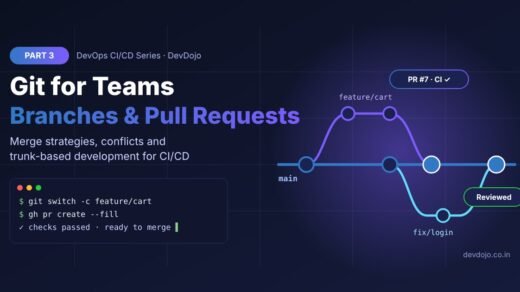
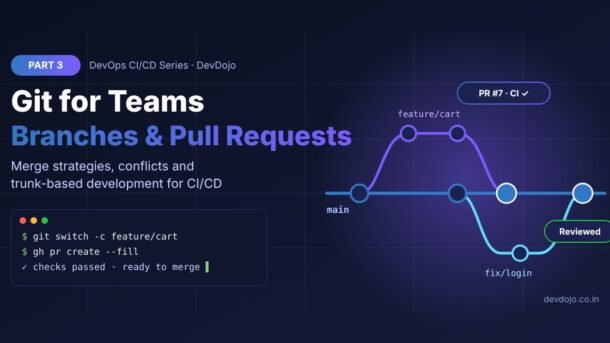
Every CI/CD pipeline starts with a Git event: a push, a pull request or a merge. So before we write bigger pipelines, we need a team workflow that keeps main healthy while many people change the code at the same time. In this part you will learn Git for teams: feature branches, pull requests, code review, the three ways to merge (merge commit, squash and rebase), how to fix merge conflicts, how to protect main with required CI checks, and why fast teams use trunk-based development with short-lived branches and feature flags. Every command below was run for real, so the outputs you see are what Git prints.
- A branch is a cheap, movable label on a commit. Teams use one short branch per change and merge it back into
main. - A pull request (PR) asks to merge a branch. CI runs the tests on it and a teammate reviews it before it can be merged.
- There are three ways to merge: merge commit (keeps all history), squash (one clean commit per PR) and rebase (straight line, no merge commit).
- Trunk-based development = tiny branches merged into
mainat least once a day, with unfinished features hidden behind feature flags. - Protect
mainwith branch rules: require a PR, passing CI checks and an approval. Never push directly to it. - Write clear commit messages with Conventional Commits (
feat:,fix:,docs:…) – later in the series we will use them to create releases automatically.
Full DevOps CI/CD roadmap (30 parts)
Beginner
- What Is DevOps and How Does CI/CD Work?
- Linux and Shell Basics Every DevOps Engineer Needs
- Git for Teams: Branches, Pull Requests and Trunk-Based Development You are here
- Automated Testing for Pipelines: Unit, Integration and End-to-End Coming soon
- Your First CI Pipeline with GitHub Actions Coming soon
- Docker Basics: Images, Containers and Dockerfiles Coming soon
- Writing Small, Secure, Production-Ready Dockerfiles Coming soon
- Container Registries and Image Versioning Coming soon
- Build Artifacts, Versioning and Semantic Releases Coming soon
- Continuous Delivery vs Continuous Deployment: Your First Release Pipeline Coming soon
Intermediate
- Environments, Configuration and Secrets Management Coming soon
- GitHub Actions Deep Dive: Matrix Builds, Caching and Reusable Workflows Coming soon
- GitLab CI/CD and Jenkins: How Other CI Tools Work Coming soon
- Infrastructure as Code with Terraform Coming soon
- Configuration Management with Ansible Coming soon
- Kubernetes Essentials for CI/CD Coming soon
- Packaging Apps for Kubernetes with Helm and Kustomize Coming soon
- GitOps with Argo CD Coming soon
- Deployment Strategies: Rolling, Blue-Green and Canary Coming soon
- Feature Flags and Progressive Delivery Coming soon
Advanced
- DevSecOps: Code, Dependency and Container Scanning in CI Coming soon
- Software Supply Chain Security: SBOMs, Signing and SLSA Coming soon
- Observability: Metrics, Logs and Traces with Prometheus, Grafana and OpenTelemetry Coming soon
- Alerts, SLOs and Incident Response Coming soon
- Fast CI for Monorepos: Affected Builds and Remote Caching Coming soon
- Self-Hosted Runners and Scaling CI Cost-Effectively Coming soon
- Platform Engineering and Internal Developer Platforms Coming soon
- AI in DevOps: AI Code Review and Agentic Pipelines Coming soon
- Measuring DevOps with DORA Metrics Coming soon
- Final Project: A Complete Pipeline from Commit to Production Coming soon
Why Git matters for CI/CD
In Part 1 our pipeline started with on: push. That one line says it all: Git is the trigger of CI/CD. When you push a branch, CI builds and tests it. When you open a pull request, CI posts a green tick or a red cross on it. When a pull request is merged into main, the deploy pipeline starts. If your team uses Git in a messy way – huge branches, direct pushes to main, unclear history – your pipeline is messy too.
main without passing checks and a review.A good team Git workflow gives you three things: safety (broken code is stopped before it reaches main), speed (small changes are reviewed and merged quickly) and traceability (you can see who changed what, why, and roll it back).
Git basics in 5 minutes: commits, branches and HEAD
Let’s refresh the four ideas everything else is built on:
92fc825).git switch.origin, on GitHub, GitLab or Bitbucket.This script creates a tiny repo, does some work on a branch and merges it back – the whole team workflow in miniature:
# Create a repo with one commit on main
git init -q -b main shop-api && cd shop-api
git config user.name "Asha"
git config user.email "asha@example.com"
echo "# Shop API" > README.md
git add README.md
git commit -q -m "chore: initial commit"
# Work on a separate branch
git switch -c feature/health-check
echo 'export const health = () => "ok";' > health.js
git add health.js
git commit -m "feat: add health check"
# Bring the work back into main
git switch main
git merge --no-ff feature/health-check -m "Merge pull request #1 from feature/health-check"
git log --oneline --graph
git branch -d feature/health-check$ git init -q -b main shop-api && cd shop-api
$ git config user.name "Asha"
$ git config user.email "asha@example.com"
$ echo "# Shop API" > README.md
$ git add README.md
$ git commit -q -m "chore: initial commit"
$ git switch -c feature/health-check
Switched to a new branch 'feature/health-check'
$ echo 'export const health = () => "ok";' > health.js
$ git add health.js
$ git commit -m "feat: add health check"
[feature/health-check 92fc825] feat: add health check
1 file changed, 1 insertion(+)
create mode 100644 health.js
$ git switch main
Switched to branch 'main'
$ git merge --no-ff feature/health-check -m "Merge pull request #1 from feature/health-check"
Merge made by the 'ort' strategy.
health.js | 1 +
1 file changed, 1 insertion(+)
create mode 100644 health.js
$ git log --oneline --graph
* fd9b1d7 Merge pull request #1 from feature/health-check
|\
| * 92fc825 feat: add health check
|/
* 09035ab chore: initial commit
$ git branch -d feature/health-check
Deleted branch feature/health-check (was 92fc825).Click ▶ Run to open the terminal panel. Commit IDs like 92fc825 will be different on your machine – they come from the content and the time of each commit.
Read the git log --graph output from bottom to top: the first commit, then a side line for the branch, then the merge commit that joins them. We use git switch instead of the older git checkout because it only does one job (changing branches), so it is harder to misuse.
Feature branches and pull requests
On a team you never commit straight to main. Instead, every change follows the same loop: branch → commit → push → pull request → CI + review → merge. A pull request (GitLab calls it a merge request) is a page where you say “here is my branch, please merge it”. It shows the diff, runs the CI checks and collects review comments.
Here is the daily workflow from the terminal. The last three commands use the GitHub CLI (gh), but you can do the same steps on the GitHub website:
# 1. Start from the latest main
$ git switch main
$ git pull --rebase
# 2. Create a short-lived branch for one small change
$ git switch -c feature/cart-discount
# 3. Commit in small steps (git add -p lets you pick changes)
$ git add -p
$ git commit -m "feat(cart): add discount codes"
# 4. Push the branch and open a pull request
$ git push -u origin feature/cart-discount
$ gh pr create --fill --base main
# 5. After review and green CI checks: squash-merge and clean up
$ gh pr merge --squash --delete-branch
These commands talk to a real GitHub remote, so there is no Run button here. Try them on your own practice repo.
What makes a good pull request?
- Small: one idea per PR. Small PRs get reviewed faster and more carefully; under ~400 changed lines is a good target.
- Clear title and description: what changed, why, and how you tested it. A PR template (shown later) makes this automatic.
- Green CI: fix failing checks before asking for review – nobody wants to review broken code.
- Fast turnaround: good teams review PRs within a few hours. A PR that waits three days goes stale and gets merge conflicts.
feature/cart-discount, fix/login-timeout or chore/update-deps. Some teams add the ticket number: feature/SHOP-142-cart-discount.Git branching strategies: Git Flow vs GitHub Flow vs trunk-based development
A branching strategy is the set of rules your team follows for creating and merging branches. There are three popular ones, and the big difference between them is how long branches live.
Click a tab to compare them:
Git Flow uses two long-lived branches: main (what is in production) and develop (the next release). Features branch off develop, a release/1.4 branch is cut to stabilise a version, and urgent fixes go into hotfix/* branches.
Good for: software you ship as numbered versions (mobile apps, desktop apps, libraries) and must support several versions at once.
Weak point: branches live for weeks, so merges are big and CI feedback arrives late. Even its author now suggests simpler flows for web apps.
GitHub Flow has one rule: main is always deployable. You create a branch for each change, open a pull request, let CI and a reviewer check it, merge it and deploy.
Good for: most web apps and APIs, small and medium teams, and anyone new to CI/CD.
Weak point: if people keep branches open for a week or more, you get the same big, painful merges as Git Flow.
Trunk-based development means everyone integrates into main (the “trunk”) at least once a day. Branches are tiny and live for hours, not days. Work that is not ready for users is merged anyway, but hidden behind a feature flag.
Good for: teams that deploy often (daily or many times a day) and have good automated tests. Big tech companies such as Google work this way, and the DORA research links it with faster, more reliable delivery.
Weak point: it needs strong CI, fast reviews and discipline about small changes.
Simple rule: start with GitHub Flow plus small pull requests. As your tests get better and you deploy more often, shrink branches until they live less than a day – at that point you are doing trunk-based development. Choose Git Flow only if you really ship numbered versions and must patch old ones.
| Git Flow | GitHub Flow | Trunk-based | |
|---|---|---|---|
| Long-lived branches | main + develop | main only | main only |
| Feature branch life | Days to weeks | A few days | Hours (under a day) |
| Release style | Planned versions | Deploy after each merge | Deploy many times a day |
| Unfinished work | Stays on its branch | Stays on its branch | Merged, hidden by a feature flag |
| Merge conflicts | Frequent and big | Sometimes | Rare and tiny |
| Fits CI/CD best? | Not really | Yes | Yes – the best fit |
How trunk-based development works in practice
Trunk-based development sounds scary (“everyone commits to main?!”) but in practice it is just GitHub Flow with very short branches. The trunkbaseddevelopment.com guide and the DORA research both link it with faster and safer delivery. The rules:
- Merge into
mainat least once a day. Split big features into small, safe steps. - Keep
mainreleasable. Every merge goes through CI; ifmainbreaks, fixing it is the team’s top priority. - Hide unfinished work behind feature flags instead of keeping it on a long branch.
- Review fast. Small PRs make a 10-minute review possible.
A feature flag is just an if that you can switch from outside the code (an environment variable, a config file or a flag service). Here is the smallest useful version in Node.js:
// checkout.mjs – unfinished code can live safely on main
import { isEnabled } from "./flags.mjs";

function oldCheckout(cart) {
  return `Old checkout: ${cart.length} items, pay on next page`;
}

function newCheckout(cart) {
  return `New one-click checkout: ${cart.length} items, paid!`;
}

const cart = ["keyboard", "mouse"];
const result = isEnabled("newCheckout") ? newCheckout(cart) : oldCheckout(cart);
console.log(result);$ node checkout.mjs
Old checkout: 2 items, pay on next page
$ FLAG_NEW_CHECKOUT=true node checkout.mjs
New one-click checkout: 2 items, paid!// flags.mjs – a tiny feature flag helper
// Flags come from environment variables, so you can switch a
// feature on or off without changing (or redeploying) the code.
const flags = {
newCheckout: process.env.FLAG_NEW_CHECKOUT === "true",
};
export function isEnabled(name) {
return flags[name] ?? false;
}Two files: switch tabs to see the flag helper. Click ▶ Run on checkout.mjs to see the same code behave differently with the flag off and on.
The new checkout can now be merged into main and even deployed to production while it is still being built – users only see it when you set FLAG_NEW_CHECKOUT=true. This is what lets trunk-based teams merge every day. We will go much deeper into flags and gradual rollouts in Part 20 of this series.
Merge, squash or rebase? Three ways to finish a pull request
When a PR is approved, GitHub offers three buttons: Create a merge commit, Squash and merge and Rebase and merge. They all bring the same code into main, but they leave very different history. Let’s try all three on the same repo. First, this script builds the starting point:
#!/usr/bin/env bash
# Run in an empty folder. Builds a tiny repo where main moved on
# while feature/cart was waiting for review.
set -euo pipefail
git init -q -b main shop && cd shop
git config user.name "Asha"
git config user.email "asha@example.com"
echo "# Shop" > README.md && git add . && git commit -qm "chore: initial commit"
git switch -qc feature/cart
echo "cart" > cart.js && git add . && git commit -qm "feat: add cart"
echo "total" >> cart.js && git commit -qam "fix: typo in cart"
git switch -q main
echo "MIT" > LICENSE && git add . && git commit -qm "docs: add license"
git log --oneline --graph --all$ bash setup.sh
* 8070f45 fix: typo in cart
* ca115d3 feat: add cart
| * 194d1e1 docs: add license
|/
* b5f8f6b chore: initial commitRun it to see the starting point: feature/cart has two commits and main got a new commit in the meantime.
Now finish the “pull request” in three different ways. Each script starts again from a fresh copy of the repo above:
# Option 1: merge commit (keeps every commit + a merge commit)
bash setup.sh > /dev/null && cd shop
git merge --no-ff feature/cart -m "Merge pull request #7 from feature/cart"
git log --oneline --graph$ bash setup.sh > /dev/null && cd shop
$ git merge --no-ff feature/cart -m "Merge pull request #7 from feature/cart"
Merge made by the 'ort' strategy.
cart.js | 2 ++
1 file changed, 2 insertions(+)
create mode 100644 cart.js
$ git log --oneline --graph
* 5080bb8 Merge pull request #7 from feature/cart
|\
| * 8070f45 fix: typo in cart
| * ca115d3 feat: add cart
* | 194d1e1 docs: add license
|/
* b5f8f6b chore: initial commit# Option 2: squash merge (all branch commits become ONE commit)
bash setup.sh > /dev/null && cd shop
git merge --squash feature/cart
git commit -qm "feat: add cart (#7)"
git log --oneline --graph$ bash setup.sh > /dev/null && cd shop
$ git merge --squash feature/cart
Automatic merge went well; stopped before committing as requested
Squash commit -- not updating HEAD
$ git commit -qm "feat: add cart (#7)"
$ git log --oneline --graph
* c5f9188 feat: add cart (#7)
* 194d1e1 docs: add license
* b5f8f6b chore: initial commit# Option 3: rebase, then fast-forward (straight line, no merge commit)
bash setup.sh > /dev/null && cd shop
git switch -q feature/cart
git rebase main
git switch -q main
git merge --ff-only feature/cart
git log --oneline --graph$ bash setup.sh > /dev/null && cd shop
$ git switch -q feature/cart
$ git rebase main
Rebasing (1/2)
Rebasing (2/2)
Successfully rebased and updated refs/heads/feature/cart.
$ git switch -q main
$ git merge --ff-only feature/cart
Updating 194d1e1..3db006f
Fast-forward
cart.js | 2 ++
1 file changed, 2 insertions(+)
create mode 100644 cart.js
$ git log --oneline --graph
* 3db006f fix: typo in cart
* 1b33fe9 feat: add cart
* 194d1e1 docs: add license
* b5f8f6b chore: initial commitClick each tab, then ▶ Run, and compare the git log --graph at the end of each output.
| Method | History on main | Pros | Cons |
|---|---|---|---|
| Merge commit | All branch commits + a merge commit | Full, honest history; easy to see which commits came from which PR | Noisy log full of “fix typo” commits and merge bubbles |
| Squash | One commit per PR | Clean, readable log; one commit to revert if the PR breaks something | Loses the small commits inside the PR |
| Rebase | Branch commits replayed on top, straight line | Linear history without merge commits | Rewrites commit IDs; never rebase a branch other people are working on |
main = one clear message. It fits trunk-based development perfectly. You can turn off the other buttons in your repository settings so everyone uses the same method.Fixing merge conflicts step by step
A merge conflict happens when two branches change the same lines of the same file and Git cannot know which version is right. It is not an error – Git is simply asking a human to decide. In this example, main changed the port to 5000 while the feature branch changed it to 8080:
# Two branches change the SAME line of app.env
git init -q -b main shop-api && cd shop-api
git config user.name "Asha" && git config user.email "asha@example.com"
printf 'PORT=3000\nLOG_LEVEL=info\n' > app.env
git add . && git commit -qm "chore: add config"
git switch -qc feature/port
sed -i "s/3000/8080/" app.env && git commit -qam "feat: use port 8080"
git switch -q main
sed -i "s/3000/5000/" app.env && git commit -qam "fix: use port 5000"
git merge feature/port
git status --short
cat app.env
# Fix it: keep the line you want, delete the markers, then commit
printf 'PORT=8080\nLOG_LEVEL=info\n' > app.env
git add app.env
git commit -qm "Merge feature/port: use port 8080"
git log --oneline --graph$ git init -q -b main shop-api && cd shop-api
$ git config user.name "Asha" && git config user.email "asha@example.com"
$ printf 'PORT=3000\nLOG_LEVEL=info\n' > app.env
$ git add . && git commit -qm "chore: add config"
$ git switch -qc feature/port
$ sed -i "s/3000/8080/" app.env && git commit -qam "feat: use port 8080"
$ git switch -q main
$ sed -i "s/3000/5000/" app.env && git commit -qam "fix: use port 5000"
$ git merge feature/port
Auto-merging app.env
CONFLICT (content): Merge conflict in app.env
Automatic merge failed; fix conflicts and then commit the result.
$ git status --short
UU app.env
$ cat app.env
<<<<<<< HEAD
PORT=5000
=======
PORT=8080
>>>>>>> feature/port
LOG_LEVEL=info
$ printf 'PORT=8080\nLOG_LEVEL=info\n' > app.env
$ git add app.env
$ git commit -qm "Merge feature/port: use port 8080"
$ git log --oneline --graph
* 0a76a86 Merge feature/port: use port 8080
|\
| * e285f39 feat: use port 8080
* | 5d52af9 fix: use port 5000
|/
* 80d6556 chore: add configClick ▶ Run and look at the cat app.env output: that is what a merge conflict looks like inside a file.
Git marks the conflict inside the file:
<<<<<<< HEADto=======is the version on your current branch (main).=======to>>>>>>> feature/portis the incoming version.
To resolve it: edit the file so it contains the final correct content, delete all three marker lines, then git add the file and git commit. VS Code shows “Accept Current / Accept Incoming / Accept Both” buttons above each conflict, which makes this easy. If you get lost, git merge --abort takes you back to before the merge.
git switch main && git pull --rebase, then update your branch with git rebase main (or git merge main) so you fix conflicts on your branch, not on main.Protecting the main branch: branch rules, CI checks and CODEOWNERS
A workflow only works if it is enforced. On GitHub you do this with rulesets (or the older “branch protection rules”): Settings → Rules → Rulesets → New branch ruleset, target the default branch, and turn on:
- Require a pull request before merging, with at least 1 approval, and “dismiss stale approvals when new commits are pushed”.
- Require status checks to pass – pick your CI job (here:
test) so a red pipeline blocks the merge button. - Block force pushes and restrict deletions so nobody can rewrite or delete
main. - Optional: require linear history (only squash or rebase merges) and require review from Code Owners.
The GitHub rulesets documentation lists every option. GitLab has the same idea under Protected branches and Merge request approvals. Three small files in your repo complete the setup:
# .github/workflows/ci.yml – runs on every pull request to main
name: CI
on:
  pull_request:
    branches: [main]
  push:
    branches: [main]

jobs:
  test:
    runs-on: ubuntu-latest
    steps:
      - uses: actions/checkout@v6
      - uses: actions/setup-node@v6
        with:
          node-version: 24
          cache: npm
      - run: npm ci
      - run: npm run lint
- run: npm test# .github/CODEOWNERS – who must review which files
# The last matching line wins.
* @your-org/backend-team
/.github/ @your-org/devops-team
/infra/ @your-org/devops-team
*.md @your-org/docs-team## What does this PR change?
<!-- One or two sentences. Link the issue: Closes #123 -->
## How was it tested?
- [ ] Unit tests pass locally
- [ ] Tried the change manually
## Checklist
- [ ] Small and focused (ideally under 400 changed lines)
- [ ] No secrets, keys or .env files committed
- [ ] Docs or README updated if neededThree files that live in the .github folder of your repo. Click the tabs to switch between them.
ci.ymlruns lint and tests on every PR tomain. Its job name (test) is what you select as a required status check.CODEOWNERSautomatically requests a review from the right team. Here, any change to the pipeline files in.github/needs the DevOps team’s approval. Replace the@your-org/…names with your real GitHub teams.pull_request_template.mdpre-fills every new PR description with the same short checklist.
main together.Good commit messages with Conventional Commits
Messages like “updated stuff” or “fix” tell your teammates nothing. Conventional Commits is a simple, popular format: <type>(optional scope): <short summary>.
| Type | Use it for | Example |
|---|---|---|
feat | A new feature for users | feat(cart): add discount codes |
fix | A bug fix | fix(login): handle expired tokens |
docs | Documentation only | docs: add setup steps to README |
test | Adding or fixing tests | test(cart): cover empty cart |
ci / build | Pipeline or build changes | ci: cache npm in GitHub Actions |
refactor / chore | Code clean-up, upkeep | chore: update dependencies |
A ! after the type (feat!:) marks a breaking change. In Part 9 we will use these messages to bump version numbers and write release notes automatically. You can enforce the format with a small Git hook – a script Git runs before it saves a commit:
git init -q -b main demo && cd demo
git config user.name "Asha" && git config user.email "asha@example.com"
cp ../commit-msg .git/hooks/commit-msg && chmod +x .git/hooks/commit-msg
echo "10% off" > discount.txt && git add discount.txt
git commit -m "updated stuff"
git commit -m "feat(cart): add discount codes"
git log --oneline$ git init -q -b main demo && cd demo
$ git config user.name "Asha" && git config user.email "asha@example.com"
$ cp ../commit-msg .git/hooks/commit-msg && chmod +x .git/hooks/commit-msg
$ echo "10% off" > discount.txt && git add discount.txt
$ git commit -m "updated stuff"
✖ Bad commit message: "updated stuff"
Use: <type>(scope): <summary> e.g. feat(cart): add discount codes
$ git commit -m "feat(cart): add discount codes"
[main (root-commit) 4e7ef42] feat(cart): add discount codes
1 file changed, 1 insertion(+)
create mode 100644 discount.txt
$ git log --oneline
4e7ef42 feat(cart): add discount codes#!/usr/bin/env bash
# .git/hooks/commit-msg – rejects messages that don't follow
# Conventional Commits: <type>(optional scope): <summary>
msg=$(head -n1 "$1")
types="feat|fix|docs|style|refactor|test|chore|ci|build|perf"
pattern="^($types)(\([a-z0-9-]+\))?!?: .{1,72}$"
if [[ ! "$msg" =~ $pattern ]]; then
echo "✖ Bad commit message: \"$msg\""
echo " Use: <type>(scope): <summary> e.g. feat(cart): add discount codes"
exit 1
fiOpen the commit-msg tab to read the hook, then go back to try-hook.sh and click ▶ Run: the first commit is rejected, the second one passes.
A local hook only protects your own machine. Teams usually add the same check in CI too (for example with commitlint), or they check only the PR title when they squash-merge, because that title becomes the commit message on main.
Common Git errors and how to fix them
| Error or problem | Why it happens | Fix |
|---|---|---|
! [rejected] main -> main (fetch first) | The remote has commits you don’t have yet | git pull --rebase, then push again |
protected branch hook declined / “Changes must be made through a pull request” | You tried to push straight to a protected main | Create a branch, push it and open a PR |
CONFLICT (content): Merge conflict in … | Two branches changed the same lines | Edit the file, remove the markers, git add, git commit (or git merge --abort) |
| “Required status check is expected” and the PR can’t merge | The check name in the rule doesn’t match a job that runs on PRs | Make sure the workflow has on: pull_request and select the exact job name |
fatal: Not possible to fast-forward, aborting. | --ff-only was used but the branches have split | Rebase your branch on main first, or use a normal merge |
Rejected push after a rebase (non-fast-forward) | Rebase rewrote your branch’s commits | git push --force-with-lease – only on your own branch |
Committed a secret or .env file | Missing .gitignore entry | Rotate the secret immediately, remove the file, add it to .gitignore |
And here are the “undo” commands you will reach for most often:
# Change the message of your last commit (only if not pushed yet)
$ git commit --amend -m "fix(cart): round prices correctly"
# Throw away local changes in one file
$ git restore cart.js
# Unstage a file you added by mistake (keeps the changes)
$ git restore --staged .env
# Undo the last commit but keep the changes in your files
$ git reset --soft HEAD~1
# Undo a commit that is already on main (makes a new "undo" commit)
$ git revert a1b2c3d
# Park unfinished work, switch branch, bring it back later
$ git stash
$ git stash pop
# After rebasing YOUR OWN branch, update the remote safely
$ git push --force-with-leasegit reset, --amend, rebase and force-push are fine on your own unmerged branch. On main or any branch others use, undo with git revert instead – it adds a new commit and keeps everyone’s history in sync.Git best practices for teams
- Protect
main: PR required, CI must pass, at least one approval, no force pushes. - Keep branches short-lived – merge within a day or two, ideally within hours.
- Keep PRs small and focused on one change; split refactors from features.
- Pick one merge method (squash is a great default) and disable the others.
- Pull often with
git pull --rebaseto stay close tomain. - Use feature flags to merge unfinished work safely instead of keeping long branches.
- Write meaningful commit messages with Conventional Commits.
- Delete merged branches (GitHub can do it automatically) so the branch list stays clean.
- Never commit secrets; keep a good
.gitignorefrom day one.
Practice task
Set up a team-ready repository on your own GitHub account:
- Create a new repo with a small Node.js project (the one from our GitHub Actions guide is perfect) and add the
ci.yml,CODEOWNERS(use your own username) andpull_request_template.mdfiles from this post. - Add a ruleset for
main: require a pull request and theteststatus check, block force pushes. - Try
git push origin maindirectly and read the error you get. - Create
feature/greeting, add a feature behind a flag likeFLAG_GREETING, open a PR and squash-merge it once CI is green. - Create a merge conflict on purpose (two branches changing the same line) and resolve it.
- Bonus: install the
commit-msghook and try a bad and a good commit message.
New to pipelines? The GitHub Actions CI/CD for Node.js guide walks through a complete workflow, and the free Pro Git book explains branching in depth.
Frequently asked questions
What is the best Git branching strategy for CI/CD?
For most teams: GitHub Flow with small pull requests, moving towards trunk-based development as your tests improve. Both keep a single main branch that is always deployable, which is exactly what continuous delivery needs. Git Flow is better only for software released as numbered versions.
Is trunk-based development the same as committing directly to main?
Not quite. Very small or very experienced teams sometimes do push straight to main, but most trunk-based teams still use tiny branches and quick pull requests so CI and a reviewer check every change. The key point is that branches live for hours, not days.
Should I use merge, squash or rebase?
Squash and merge is the simplest default: one PR becomes one clean commit on main. Use merge commits if you want to keep every small commit, and rebase if you want a straight history without squashing. Whatever you choose, use the same method across the team.
What is the difference between git merge and git rebase?
git merge joins two branches with a new merge commit and keeps the original commits as they are. git rebase replays your commits on top of another branch, creating new commits with new IDs and a straight-line history. Rebase only branches that nobody else is using.
How big should a pull request be?
As small as possible while still making sense on its own. Many teams aim for under 200–400 changed lines. Small PRs get reviewed faster, have fewer bugs and rarely conflict.
What is the difference between a pull request and a merge request?
Nothing important – it is the same idea with a different name. GitHub and Bitbucket say “pull request”, GitLab says “merge request”.
Conclusion
You now know how a team uses Git in a CI/CD world: short feature branches, pull requests checked by CI and a reviewer, a single merge method, a protected main branch and clear Conventional Commit messages. You also saw why trunk-based development – tiny branches merged every day, with feature flags for unfinished work – is the branching strategy that fits continuous delivery best. These habits make every later part of this series easier, because every pipeline we build will start from a clean Git event.
main is only as safe as the tests that guard it. We will learn the testing pyramid and add unit, integration and end-to-end tests that run on every pull request.New posts every day on DevDojo
Follow the full DevOps CI/CD series – 30 parts from “what is DevOps” to a complete pipeline from commit to production. Bookmark devdojo.co.in and tell us in the comments which branching strategy your team uses.