What you should know first: read Node.js Part 1: What Is Node.js and How to Build Your First Node.js App. You should have Node.js installed and know how to run a file with node file.js.
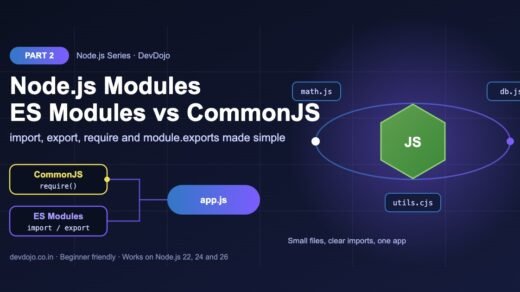
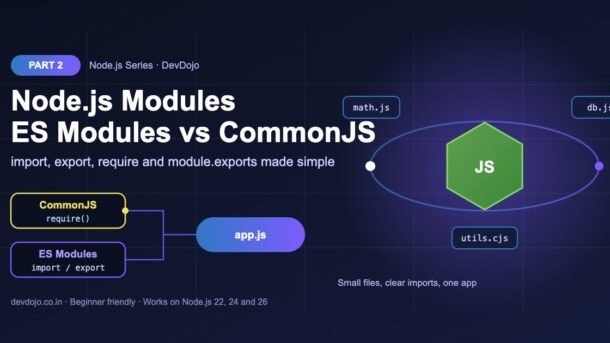
In Part 1 you wrote everything in one file. That is fine for ten lines, but real apps have hundreds of files: routes, database code, helpers, configuration. Node.js modules are how you split code into small files and share functions between them. In this part you will learn, in simple words, the two module systems Node.js supports: the modern ES Modules (import / export) and the older CommonJS (require / module.exports). You will see how Node.js decides which one a file uses, how to mix them safely, and how to fix the errors every beginner meets.
- A module is simply one JavaScript file. Anything you export from it can be used by other files; everything else stays private.
- ES Modules (ESM) use
importandexport. They are the JavaScript standard and the best choice for new projects. - CommonJS (CJS) uses
require()andmodule.exports. It is older but still used by many npm packages. - Node.js picks the system by file extension:
.mjs= ESM,.cjs= CommonJS, and.jsfollows the"type"field inpackage.json. - ESM can import CommonJS files, and modern Node.js (22.12+) can also
require()ES modules. Modules run once and are then cached.
Full Node.js roadmap (30 parts)
Beginner
- What Is Node.js and How to Build Your First Node.js App
- Modules in Node.js: ES Modules, CommonJS and import/export You are here
- npm and package.json: Installing and Managing Packages Coming soon
- Working with Files and Folders: the fs and path Modules Coming soon
- Asynchronous Node.js: Callbacks, Promises and async/await Coming soon
- The Event Loop Explained Simply Coming soon
- Events and EventEmitter: Building Event-Driven Code Coming soon
- Streams and Buffers: Handling Large Data Efficiently Coming soon
- Building a Web Server with the http Module Coming soon
- Mini Project: Build a Command-Line Tool with Node.js Coming soon
Intermediate
- Express.js Basics: Routes, Requests and Responses Coming soon
- Middleware in Express: How Requests Flow Coming soon
- Build a REST API with Express: Full CRUD Coming soon
- Validating Request Data with Zod Coming soon
- Environment Variables and Configuration (–env-file and .env) Coming soon
- Connecting Node.js to PostgreSQL Coming soon
- Using an ORM: Prisma vs Drizzle Coming soon
- MongoDB with Mongoose Coming soon
- Authentication: Password Hashing, Sessions and JWT Coming soon
- Error Handling and Logging with Pino Coming soon
Advanced
- Testing Node.js Apps with node:test and Supertest Coming soon
- TypeScript with Node.js: Running .ts Files Directly Coming soon
- File Uploads and Image Processing Coming soon
- Real-Time Apps with WebSockets and Socket.IO Coming soon
- Caching with Redis Coming soon
- Background Jobs and Queues with BullMQ Coming soon
- Worker Threads and Clustering for Performance Coming soon
- Security Best Practices for Node.js APIs Coming soon
- Debugging, Profiling and Performance Tuning Coming soon
- Final Project: Build and Deploy a Production-Ready Node.js API Coming soon
What is a module in Node.js?
A module is just a JavaScript file that keeps its own variables to itself. Think of each file as a small shop with a front counter. Inside the shop there are many things (variables, helper functions), but customers only get what is put on the counter. In code, “putting something on the counter” is called exporting, and “buying it from another file” is called importing.
Modules give you three big benefits:
db.js talks to the database, mail.js sends email. Easy to find, easy to change.count without any clash.Node.js has three kinds of modules you will import: your own files (like ./math.js), built-in modules that come with Node.js (like node:fs, node:path, node:os), and npm packages you install (like express; we cover npm in Part 3).
ES Modules vs CommonJS: two ways to share code
When Node.js was created in 2009, JavaScript had no built-in module system, so Node.js invented its own: CommonJS. Years later, JavaScript itself got an official standard called ES Modules (ESM), which browsers also understand. Today Node.js supports both, which is why you see two different styles in tutorials and packages.
| Feature | ES Modules (modern) | CommonJS (older) |
|---|---|---|
| Share code | export / export default | module.exports / exports |
| Use code | import … from "…" | const x = require("…") |
| File extension | .mjs, or .js with "type": "module" | .cjs, or .js without "type": "module" |
| Loading | Imports are found before the code runs | require() runs line by line, when reached |
Top-level await | Yes | No |
__dirname, __filename | Use import.meta.dirname / import.meta.filename | Available |
| Works in browsers | Yes | No |
| Best for | All new projects | Older projects and older packages |
CommonJS: require and module.exports
Let’s start with the older style, because you will see it in many existing projects. In CommonJS, each file has a special object called module.exports. Whatever you put on it is what other files receive when they call require(). We use the .cjs extension so Node.js always treats these files as CommonJS.
// math.cjs – a CommonJS module
const PI = 3.14159;

function add(a, b) {
  return a + b;
}

function circleArea(r) {
  return PI * r * r;
}

// Choose what other files can use
module.exports = { add, circleArea };// app.cjs – load our module with require()
const { add, circleArea } = require("./math.cjs");
const path = require("node:path");
console.log("2 + 3 =", add(2, 3));
console.log("Area of r=2:", circleArea(2).toFixed(2));
console.log("This file:", path.basename(__filename));
console.log("Type of require:", typeof require);$ node app.cjs
2 + 3 = 5
Area of r=2: 12.57
This file: app.cjs
Type of require: functionClick the app.cjs tab, then ▶ Run to see the real output.
What is happening here:
PIis not exported, so it stays private tomath.cjs. OnlyaddandcircleAreaare shared.require("./math.cjs")runs the file and returns itsmodule.exportsobject. We use destructuring ({ add, circleArea }) to take just the two functions.- The
./at the start means “a file next to this one”. Without it, Node.js would look for a built-in module or an npm package calledmath.cjs. require("node:path")loads a built-in module. Thenode:prefix makes that clear.__filenameandrequireare not real globals. Node.js quietly wraps every CommonJS file in a function and passes them in. That is why they do not exist in ES modules.
exports = …: CommonJS also gives you a shortcut variable called exports. You can write exports.add = add, but never exports = { add }. Replacing the variable breaks its link to module.exports, so the other file receives an empty object. When in doubt, always use module.exports.ES Modules: import and export
Now the modern way. First tell Node.js that the .js files in this project are ES modules by adding "type": "module" to package.json:
{
  "name": "node-part2",
  "version": "1.0.0",
  "type": "module"
}// math.js – an ES module (package.json has "type": "module")
export const PI = 3.14159;
export function add(a, b) {
return a + b;
}
export function circleArea(r) {
return PI * r * r;
}
// One default export per file (optional)
export default function greet(name) {
return `Hello, ${name}!`;
}// app.js – import named and default exports
import greet, { add, circleArea as area } from "./math.js";
import * as math from "./math.js";
import { readFile } from "node:fs/promises";
console.log(greet("DevDojo"));
console.log("2 + 3 =", add(2, 3));
console.log("Area of r=2:", area(2).toFixed(2));
console.log("All exports:", Object.keys(math));
const pkg = JSON.parse(await readFile("./package.json", "utf8"));
console.log("Package type:", pkg.type);$ node app.js
Hello, DevDojo!
2 + 3 = 5
Area of r=2: 12.57
All exports: [ 'PI', 'add', 'circleArea', 'default' ]
Package type: moduleClick the three tabs to read each file, then ▶ Run on app.js.
There are two kinds of exports in ES modules:
- Named exports (
export const PI,export function add): a file can have many. You import them with curly braces and the exact same name:import { add } from "./math.js". You can rename on import withas:{ circleArea as area }. - Default export (
export default): at most one per file. You import it without curly braces and can give it any name:import greet from "./math.js". import * as mathcollects every export into one object. The output shows a key calleddefault: that is where the default export lives.
Notice two more things in app.js: the file path includes the extension (./math.js, not ./math), and we used await at the top level of the file, outside any async function. Both are normal in ES modules.
How Node.js decides: ESM or CommonJS?
This is the part that confuses most beginners, so let’s make it simple. Node.js looks at the file extension first, and only for plain .js files does it check package.json. Click the tabs below to see each case.
Always an ES module. The .mjs extension means “module JavaScript”. Use import/export. It does not matter what package.json says.
Always CommonJS. The .cjs extension means “CommonJS JavaScript”. Use require/module.exports. Handy for one old-style config file inside a modern ESM project.
ES module. The nearest package.json (searching upwards through the folders) has "type": "module", so every .js file in that project is ESM. This is the setup we recommend for new projects.
CommonJS by default, for backwards compatibility. But modern Node.js (22.7 and newer) is smart: if the file contains ESM-only syntax like import or export, it re-runs it as an ES module. This “detection” is a helpful fallback, not a plan. It costs a little start-up time, so always set "type" explicitly.
.js files look at the "type" field in the nearest package.json.You can create the package.json from the terminal instead of by hand:
# create package.json and switch the project to ES modules
$ npm init -y
$ npm pkg set type=module
$ npm pkg get type
"module"
Mixing ES Modules and CommonJS
In real projects you will often use an old CommonJS package from a modern ESM app, or the other way round. Good news: both directions work in current Node.js versions.
// use-cjs.mjs – ESM can import CommonJS
import logger from "./logger.cjs";      // module.exports object
import { log } from "./logger.cjs";     // named import also works

log("ESM imported a CommonJS file");
console.log("level:", logger.level);$ node use-cjs.mjs
[log] ESM imported a CommonJS file
level: info// use-esm.cjs – CommonJS can require() ES modules (Node.js 22.12+)
const config = require("./config.mjs");
console.log("port:", config.port);
console.log("default:", config.default.appName);$ node use-esm.cjs
port: 3000
default: DevDojo API// logger.cjs – an old CommonJS helper
function log(msg) {
console.log(`[log] ${msg}`);
}
module.exports = { log, level: "info" };
// config.mjs – a modern ES module
export const port = 3000;
export default { appName: "DevDojo API" };Two directions: click each tab and ▶ Run. The third tab shows the two helper files (logger.cjs and config.mjs).
- ESM importing CommonJS has always worked. The
module.exportsobject becomes the default import. Node.js also tries to detect named exports, soimport { log } from "./logger.cjs"usually works too. - CommonJS requiring ESM (
require()of an ES module) is the newer feature. It is enabled by default from Node.js 22.12 and 20.19, and you get the module’s namespace object: named exports as properties and the default export under.default. - One limit:
require()cannot load an ES module that uses top-levelawait. Node.js throwsERR_REQUIRE_ASYNC_MODULE. In that case useawait import("./file.mjs")inside an async function.
.cjs until you have time to convert them.ESM extras: __dirname, JSON files and dynamic import()
Three questions come up as soon as people switch to ES modules: “Where did __dirname go?”, “How do I load a JSON file?” and “Can I load a module only when needed?”. One small file answers all three:
// paths.js – ESM replacements for __dirname, JSON and lazy loading
import path from "node:path";
import settings from "./settings.json" with { type: "json" };

console.log("Folder:", path.basename(import.meta.dirname));
console.log("File:", path.basename(import.meta.filename));
console.log("Settings:", settings);

// Dynamic import(): load a module only when you need it
const useColors = process.argv.includes("--color");
if (useColors) {
  const { styleText } = await import("node:util");
  console.log(styleText("green", "Colors loaded on demand"));
} else {
  console.log("Colors module was not loaded");
}$ node paths.js
Folder: esm-extras
File: paths.js
Settings: { theme: 'dark', retries: 3 }
Colors module was not loaded
$ node paths.js --color
Colors loaded on demand{ "theme": "dark", "retries": 3 }Click ▶ Run: the second command loads node:util only because --color was passed.
import.meta.dirnameandimport.meta.filenameare the ESM versions of__dirnameand__filename. Use them to build paths to files next to your code, likepath.join(import.meta.dirname, "data.txt").with { type: "json" }is an import attribute. It tells Node.js “this file must be JSON”, which is a safety check so a JSON import can never run code by surprise.await import("node:util")is a dynamic import. It works like a function, returns a promise, and loads the module only when that line runs. It is useful for big, rarely used features, plugins, or loading ESM from CommonJS. (styleTextfromnode:utilcolours terminal text without any npm package.)
Modules run once: the module cache
An important fact that surprises many developers: a module’s code runs only the first time it is imported. After that, Node.js keeps it in a cache, and every later import receives the same, already-loaded module. This is why a database connection created in db.js is shared by your whole app instead of being opened again for every file.
// main.js – modules are cached and shared
import "./a.js";
import { count, increment } from "./counter.js";

increment();
console.log("count is", count); // live binding: sees both increments$ node main.js
counter.js is loading...
count is 2// counter.js – runs only ONCE, no matter how many imports
console.log("counter.js is loading...");
export let count = 0;
export function increment() {
count++;
}import { increment } from "./counter.js";
increment();Both main.js and a.js import counter.js. Click ▶ Run and count how many times “loading” prints.
counter.js, but its code runs once. Everyone shares the same cached copy.ES modules also give you live bindings: the imported count is not a copy, it is a live view of the variable inside counter.js. That is why main.js sees 2 after both increments. (You cannot assign to an imported variable directly, though: count = 5 in main.js throws an error. Change it through an exported function instead.)
Common errors and fixes
Here is the error you will almost certainly see on your first day with ES modules: using require inside an ESM file.
const fs = require("node:fs");$ node oops.js
file:///home/dev/esm-extras/oops.js:1
const fs = require("node:fs");
^
ReferenceError: require is not defined in ES module scope, you can use import instead
This file is being treated as an ES module because it has a '.js' file extension and '/home/dev/esm-extras/package.json' contains "type": "module". To treat it as a CommonJS script, rename it to use the '.cjs' file extension.Click ▶ Run to see the real error. Node.js even tells you the fix: use import or rename the file to .cjs.
| Error message | Why it happens | How to fix it |
|---|---|---|
ReferenceError: require is not defined in ES module scope | The file is an ES module (.mjs or "type": "module") but uses require. | Use import, or rename the file to .cjs. |
SyntaxError: Cannot use import statement outside a module | The file is treated as CommonJS (often a .cjs file, or a tool that does not detect ESM). | Add "type": "module" to package.json or rename the file to .mjs. |
Error [ERR_MODULE_NOT_FOUND]: Cannot find module '…/math' | ES modules need the full file name; ./math is not enough. | Write ./math.js with the extension. |
ReferenceError: __dirname is not defined in ES module scope | __dirname only exists in CommonJS. | Use import.meta.dirname (Node.js 20.11+). |
SyntaxError: The requested module './x.js' does not provide an export named 'y' | Name typo, or the file uses a default export. | Check the spelling, or import without braces: import y from "./x.js". |
Required object is empty {} | exports = {…} was used in a CommonJS file. | Use module.exports = {…}. |
ERR_REQUIRE_ASYNC_MODULE | require() of an ES module that uses top-level await. | Use await import() instead. |
Best practices for Node.js modules
- Use ES Modules for new code. Add
"type": "module"topackage.jsonon day one. It matches the browser, TypeScript and modern tools. - Always write file extensions in relative imports (
./utils.js). It is required in ESM and makes code clearer. - Use the
node:prefix for built-in modules (node:fs,node:path). It can never clash with an npm package of the same name. - Prefer named exports for helpers. Keep one clear job per file, and keep files small.
- Avoid circular imports (a.js imports b.js and b.js imports a.js). They can give you
undefinedor “cannot access before initialization” errors. Move shared code into a third file. - Do not rely on automatic detection. Set
"type"explicitly or use.mjs/.cjs, so every tool reads your files the same way.
For the full details, the official Node.js ECMAScript modules documentation and Node.js packages documentation are excellent references.
Practice task
Build a tiny “price calculator” split into modules:
- Create a folder
shopand runnpm init -yandnpm pkg set type=module. - Create
tax.jswith a named exportaddGST(price, rate = 0.18)that returns the price including 18% GST. - Create
format.jswith a default export that formats a number as rupees, for example usingnew Intl.NumberFormat("en-IN", { style: "currency", currency: "INR" }). - Create
app.jsthat imports both and prints the final price of 3 items. - Bonus: add an old-style
discount.cjswithmodule.exportsand import it fromapp.js.
If node app.js prints three nicely formatted prices, you have mastered the basics of Node.js modules.
FAQ
Should I use ES Modules or CommonJS in a new Node.js project?
Use ES Modules. They are the JavaScript standard, work in browsers too, support top-level await, and all current Node.js versions support them fully. Use CommonJS only when you maintain an older project or a tool that requires it.
What is the difference between .js, .mjs and .cjs?
.mjs is always an ES module, .cjs is always CommonJS, and .js follows the "type" field in the nearest package.json ("module" = ESM, missing or "commonjs" = CommonJS).
Can I use require() and import in the same file?
Not directly. ESM files have no require, and CommonJS files cannot use the import statement. But ESM can use import() or createRequire from node:module, and CommonJS can use require() on ES modules (Node.js 22.12+) or await import().
What is the difference between export default and named exports?
A file can have many named exports, imported with curly braces and the same name. It can have only one default export, imported without braces under any name you like.
Why do I need the .js extension in imports?
ES modules follow the same rules as browsers, where a URL must point to an exact file. Node.js does not guess extensions for relative ESM imports, so ./math fails and ./math.js works.
Does importing a module twice run it twice?
No. A module runs once, the first time it is loaded. Later imports get the cached copy, so shared objects such as a database pool are created only once.
dependencies vs devDependencies, version ranges, package-lock.json and npm scripts.Conclusion
Node.js modules turn one big messy file into small, focused, reusable pieces. You learned the two systems: CommonJS with require and module.exports, and modern ES Modules with import and export. You know how Node.js picks between them (.mjs, .cjs and the "type" field), how to mix them, how to replace __dirname, load JSON and use dynamic import(), and why modules run only once. With this foundation, installing and using npm packages in the next part will feel natural.
New posts every day on DevDojo
Follow the full Node.js series, from your first script to a production-ready API. Bookmark devdojo.co.in and come back tomorrow for the next lesson.