What you should know first: this is the first part, so no earlier part is needed. You should be comfortable with basic HTML, CSS and JavaScript (variables, functions, arrays, objects and arrow functions). If promises and async code still feel new, keep our JavaScript Promises guide open for later parts.
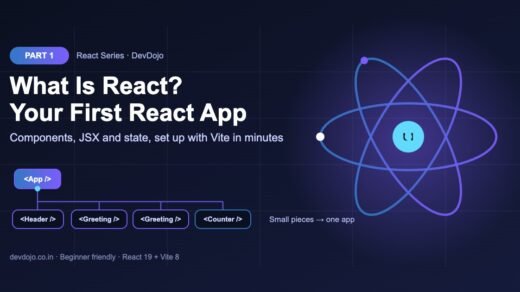
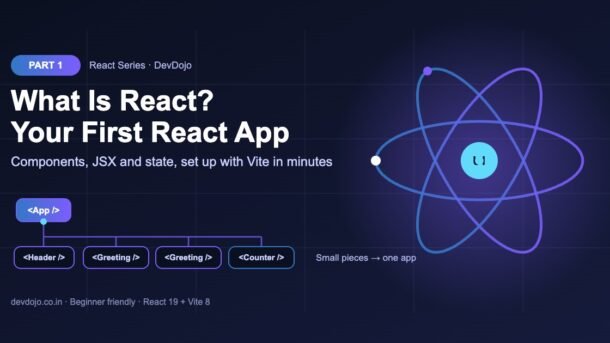
React is the most popular way to build user interfaces for the web, and it shows up in a huge number of frontend job posts in India and around the world. But what exactly is it, and why do so many teams choose it? In this first part of the React series you will learn, in simple words, what is React, the three ideas it is built on (components, JSX and state), and how React updates the page for you. Then you will build and run your first React app with Vite, look at every file it creates, and write your own components.
- React is a free, open-source JavaScript library for building user interfaces out of small, reusable pieces called components.
- A component is a JavaScript function that returns JSX, an HTML-like syntax that describes what should appear on the screen.
- State is data that can change (like a counter). When state changes, React re-runs the component and updates only the parts of the page that changed.
- React is declarative: you describe the UI for the current data (UI = f(state)) instead of writing step-by-step DOM updates.
- The quickest way to start is Vite:
npm create vite@latest my-app -- --template react, thennpm installandnpm run dev.
Full React roadmap (30 parts)
Beginner
- What Is React and How to Build Your First React App You are here
- JSX Explained: Writing HTML-Like Code in JavaScript Coming soon
- Components and Props: Building Reusable UI Coming soon
- State with useState: Making Components Interactive Coming soon
- Handling Events and Forms in React Coming soon
- Conditional Rendering and Lists with Keys Coming soon
- Styling React Apps: Plain CSS, CSS Modules and Tailwind Coming soon
- useEffect: Side Effects, Data Fetching and Cleanup Coming soon
- Lifting State Up: Sharing Data Between Components Coming soon
- Mini Project: Build a To-Do App with React Coming soon
Intermediate
- useRef: Working with the DOM and Keeping Values Coming soon
- useContext: Sharing Data Without Prop Drilling Coming soon
- useReducer: Managing Complex State Coming soon
- Custom Hooks: Reusing Logic Across Components Coming soon
- React Router: Pages, Links and Dynamic Routes Coming soon
- Fetching Server Data with TanStack Query Coming soon
- Forms the Modern Way: Actions, useActionState and Validation Coming soon
- React with TypeScript: Typing Props, State and Events Coming soon
- Global State: Context vs Zustand vs Redux Toolkit Coming soon
- Testing React Apps with Vitest and React Testing Library Coming soon
Advanced
- How Rendering Works: Re-renders, Reconciliation and Keys Coming soon
- Performance: memo, useMemo, useCallback and the React Compiler Coming soon
- Code Splitting with lazy() and Suspense Coming soon
- Concurrent React: useTransition and useDeferredValue Coming soon
- Error Boundaries and Handling Errors Gracefully Coming soon
- The use() API and Optimistic UI with useOptimistic Coming soon
- React Server Components and Server Functions Coming soon
- Accessibility in React Apps Coming soon
- React Patterns for Large Apps: Folder Structure and Composition Coming soon
- Final Project: Build and Deploy a Complete React App Coming soon
What is React? (simple definition)
React is a JavaScript library for building user interfaces. It was created at Facebook (now Meta) and released as open source in 2013. Today it is maintained by Meta together with a large community, and it powers apps such as Facebook, Instagram, WhatsApp Web, Netflix and many Indian startups and product companies.
Notice the word library. React focuses on one job, the UI (what the user sees and clicks). It does not decide how you route between pages, talk to a database or deploy your app. That is why you will often hear about React together with other tools, like Vite for development, React Router for pages, or Next.js as a full framework. We will meet all of them in this series.
The official documentation at react.dev is excellent and free, and this series follows the same modern style it teaches: function components and hooks (no old class components).
The problem React solves
Imagine a simple counter: a line of text and a button. In plain JavaScript you have to find the elements, listen for clicks, change a variable and then remember to update every place on the page that shows that variable. That style is called imperative: you give the browser step-by-step orders.
For one counter this is fine. For a real app (a shopping cart, a chat window, a dashboard with filters) there are hundreds of pieces of data and thousands of elements. Forgetting a single update leads to bugs like “the cart icon says 3 items but the cart page shows 2”.
React flips this around. You write a function that says “for this data, the screen looks like this”. When the data changes, React calls your function again and updates the page for you. This style is called declarative, and it is often written as UI = f(state). Compare the two versions of the same counter:
<!-- index.html: a counter in plain JavaScript -->
<p id="label">Clicked 0 times</p>
<button id="btn">Click me</button>

<script>
  let count = 0;
  const label = document.getElementById("label");
  const btn = document.getElementById("btn");

  btn.addEventListener("click", () => {
    count = count + 1;
    // We must remember to update the page ourselves
    label.textContent = "Clicked " + count + " times";
  });
</script>import { useState } from "react";
export default function Counter() {
const [count, setCount] = useState(0);
// We only describe the UI. React keeps the page in sync.
return (
<>
<p>Clicked {count} times</p>
<button onClick={() => setCount(count + 1)}>Click me</button>
</>
);
}Click the two tabs to compare the same counter written in plain JavaScript and in React.
The React version has no getElementById and no manual textContent update. You only say what the paragraph and button should show for the current count. If you add a second place that shows the count, it stays correct automatically.
The 3 core ideas of React
Almost everything in React comes back to three ideas. Each one gets its own part later in this series, so for now just get the big picture:
Navbar, a ProductCard, a LoginForm. You combine them like LEGO blocks to build a whole page.<h1>Hello</h1>. It makes components easy to read. A build tool turns it into normal JavaScript.There is one more word you will see everywhere: hooks. Hooks are special functions whose names start with use, such as useState and useEffect. They let a function component remember state, run side effects and more. (If you are curious, we already have a deep dive on the useEffect hook, which Part 8 builds on.)
How React updates the page
When state changes, React does not reload the page and does not rebuild everything. It follows four quick steps:
- Trigger: something calls a state setter, for example
setCount(count + 1)after a click. - Render: React calls your component function again. It returns a new description of the UI (React elements).
- Compare: React compares the new description with the previous one. People often call this the virtual DOM diff; React’s own word is reconciliation.
- Commit: React changes only the real DOM nodes that are different. Everything else is left alone.
React, frameworks and React Native
Beginners often get confused by all the names around React. Click the tabs to see how they fit together:
React itself is a library for building user interfaces. It gives you components, JSX, state and hooks, and it updates the page efficiently.
- Does not include: page routing, data fetching rules or a server. You add these with other packages when you need them.
- Best for: learning React, single-page apps, dashboards and widgets.
- Setup in this series: React + Vite.
Frameworks such as Next.js and React Router (framework mode) are built on top of React and add the missing pieces.
- Add: file-based routing, server rendering, data loading, React Server Components and deployment tooling.
- Best for: full websites and products that need SEO and a server.
- Tip: learn plain React first. Everything you learn here works inside Next.js too (see our Next.js caching guide).
React Native uses the same React ideas (components, props, state, hooks) to build real Android and iOS apps.
- Difference: instead of
<div>and<p>you use<View>and<Text>, which become native mobile views. - Good news: once you know React, React Native feels familiar. It has its own series later on DevDojo.
Angular and Vue.js solve the same problem (building UIs from components) in different ways.
- Angular: a complete framework from Google with TypeScript, dependency injection and lots built in.
- Vue: a progressive framework with HTML-like templates that many beginners find gentle.
- React: smaller core, “just JavaScript”, and the largest job market in India and abroad.
For this series we use React with Vite. Vite is a fast build tool and development server. It starts in milliseconds, reloads the browser instantly when you save a file (this is called Hot Module Replacement, or HMR), and creates an optimised build for production. The old create-react-app tool is deprecated, so do not use it in new projects.
Create your first React app with Vite
You need two things installed: Node.js (which also gives you npm) and a code editor such as VS Code. Vite 8 needs Node.js 20.19 or newer, or 22.12 or newer. Download the LTS version from nodejs.org if node -v shows an older version.
Open a terminal and run these commands. The output below is real, from creating the project for this post:
# 1. Check Node.js (Vite 8 needs Node.js 20.19+ or 22.12+)
$ node -v
v22.22.0

# 2. Create a new React project with Vite
$ npm create vite@latest my-first-react -- --template react

create-vite v9.3.1
|
o  Scaffolding project in ~/projects/my-first-react...
|
—  Done. Now run:

  cd my-first-react
  npm install
  npm run dev

# 3. Install packages and start the dev server
$ cd my-first-react
$ npm install
$ npm run dev
Open http://localhost:5173 in your browser and you will see the Vite + React welcome page with a working counter. Keep the dev server running while you work: every time you save a file, the browser updates in under a second.
--template react-ts instead. We start with JavaScript to keep things simple and switch to TypeScript in Part 18. Our TypeScript 7 guide covers the new compiler.Project structure tour
Here is what Vite created. You will spend most of your time inside src/:
| File or folder | What it is for |
|---|---|
index.html | The single HTML page of your app. It has an empty <div id="root"> where React draws everything. |
src/main.jsx | The entry point. It finds #root and tells React to render the <App /> component inside it. |
src/App.jsx | Your main (root) component. Start editing here. |
src/index.css | Global styles for the whole app. |
src/assets/ | Images and other files you import from your code. |
public/ | Files copied as they are, like favicon.svg. Refer to them with a leading /. |
vite.config.js | Vite settings. The React plugin adds JSX support and fast refresh. |
package.json | Project name, scripts (dev, build, lint, preview) and dependencies such as react and react-dom. |
node_modules/ | Installed packages. Never edit it, and never commit it to Git. |
Now look at the three files that connect everything. They are exactly as Vite generated them:
<!doctype html>
<html lang="en">
  <head>
    <meta charset="UTF-8" />
    <link rel="icon" type="image/svg+xml" href="/favicon.svg" />
    <meta name="viewport" content="width=device-width, initial-scale=1.0" />
    <title>my-first-react</title>
  </head>
  <body>
    <div id="root"></div>
    <script type="module" src="/src/main.jsx"></script>
  </body>
</html>import { StrictMode } from 'react'
import { createRoot } from 'react-dom/client'
import './index.css'
import App from './App.jsx'
createRoot(document.getElementById('root')).render(
<StrictMode>
<App />
</StrictMode>,
)import react from '@vitejs/plugin-react'
import { defineConfig } from 'vite'
// https://vite.dev/config/
export default defineConfig({
plugins: [react()],
})These three files come from the Vite template exactly as generated. Click the tabs to read each one.
Two details worth knowing:
createRoot(...).render(...)comes fromreact-dom/client.reactis the core library, andreact-domconnects it to the browser’s DOM. (React Native uses a different renderer for mobile.)<StrictMode>is a development helper. It runs some extra checks and may call your components twice in development only to help you find bugs. This is expected; it does not happen in production.
Write your first components
Let us replace the welcome page with our own small app. Delete src/App.css, then create src/Greeting.jsx and replace src/App.jsx and src/index.css with the code below:
// A component is just a function that returns JSX (UI).
export default function Greeting({ name }) {
  return <p className="greeting">Namaste, {name}! 👋</p>;
}import { useState } from "react";
import Greeting from "./Greeting.jsx";
export default function App() {
// count = current value, setCount = function to change it
const [count, setCount] = useState(0);
return (
<main className="app">
<h1>My First React App</h1>
<Greeting name="Asha" />
<Greeting name="Rahul" />
<button onClick={() => setCount(count + 1)}>
Clicked {count} {count === 1 ? "time" : "times"}
</button>
</main>
);
}$ npm run dev
> my-first-react@0.0.0 dev
> vite
VITE v8.3.5 ready in 254 ms
➜ Local: http://localhost:5173/
➜ Network: use --host to exposebody { font-family: system-ui, sans-serif; margin: 0; background: #0b1020; color: #e8ebff; }
.app { max-width: 480px; margin: 60px auto; text-align: center; }
.greeting { font-size: 1.2rem; color: #a99bff; }
button { font-size: 1rem; padding: 10px 18px; border-radius: 10px; border: 0;
background: #3178c6; color: #fff; cursor: pointer; }Open the App.jsx tab and click ▶ Run to see the dev server start. In the browser the page shows two greetings and a button; after two clicks it reads “Clicked 2 times”.
Save the files and look at the browser. You should see a heading, two greetings and a button. Click the button and the text changes from “Clicked 0 times” to “Clicked 1 time” and then “Clicked 2 times”. We tested this exact app in a real browser before publishing.
Let us read the code line by line:
Greetingis a component: a normal function whose name starts with a capital letter and which returns JSX. It receives props as an object, and we pull outnamewith destructuring:{ name }.<Greeting name="Asha" />uses the component like an HTML tag.name="Asha"is a prop. Using it twice with different props gives two different greetings; that is reusability.- Curly braces
{ }inside JSX switch back to JavaScript.{name}shows a variable and{count === 1 ? "time" : "times"}runs a small expression. useState(0)creates a piece of state starting at0. It returns the current value (count) and a function to change it (setCount).onClick={() => setCount(count + 1)}passes a function to run on click. CallingsetCounttriggers a re-render with the new value.classNameis used instead ofclass, becauseclassis a reserved word in JavaScript.
count = count + 1 will not update the screen. Always use the setter function (setCount) so React knows something changed.What JSX turns into
Browsers do not understand JSX. During development and build, Vite’s React plugin turns every JSX tag into a function call that creates a React element, a plain JavaScript object that describes a piece of UI. You can see this yourself without any build tool by calling createElement directly. Create jsx-demo.mjs in the project folder:
// What does JSX turn into? Let's look at a React element.
import { createElement } from "react";
import { renderToString } from "react-dom/server";

// <h1 className="title">Hello React</h1>  is compiled to:
const element = createElement("h1", { className: "title" }, "Hello React");
console.log(element.type, element.props);

// A component is a function that returns elements.
function Greeting({ name }) {
  return createElement("p", null, "Namaste, ", name, "!");
}

// React turns elements into real HTML (here, as a string).
console.log(renderToString(createElement(Greeting, { name: "Asha" })));$ node jsx-demo.mjs
h1 { className: 'title', children: 'Hello React' }
<p>Namaste, <!-- -->Asha<!-- -->!</p>Click ▶ Run to see what a React element really is, and the HTML React produces from a component.
The first line of output shows that a React element is just an object with a type ("h1") and props. The second line shows React turning a component into real HTML. (The <!-- --> comments are markers React uses to separate text pieces.) You never need to write createElement by hand, but knowing that JSX is just JavaScript makes many rules easier to understand. Part 2 covers all the JSX rules.
Build for production
The dev server is for development only. When you are ready to deploy, create an optimised build. Vite bundles and minifies your code into the dist/ folder, which you can upload to any static host (Netlify, Vercel, GitHub Pages, Firebase Hosting or your own server):
# Create an optimised production build in the dist/ folder
$ npm run build

> my-first-react@0.0.0 build
> vite build

vite v8.3.5 building client environment for production...
transforming...
✓ 17 modules transformed.
rendering chunks...
computing gzip size...
dist/index.html                   0.46 kB │ gzip:  0.30 kB
dist/assets/index-CuXkAzXh.css    0.29 kB │ gzip:  0.21 kB
dist/assets/index-DO-ZuKAz.js   219.88 kB │ gzip: 68.76 kB

✓ built in 152ms

# Preview the production build locally
$ npm run preview
Your whole app, including React itself, is about 69 kB after gzip compression. File names include a hash (like index-DO-ZuKAz.js) so browsers can cache them safely. Want a styling framework next? Our Tailwind CSS v4 tutorial works with this exact Vite setup.
One more helpful tool: install the React Developer Tools extension for Chrome, Edge or Firefox. It adds a Components tab to the browser DevTools where you can see your component tree, props and state while the app runs.
Common errors and fixes
| Error or problem | Why it happens | How to fix it |
|---|---|---|
'npm' is not recognized / command not found: npm | Node.js is not installed, or the terminal was opened before installing it. | Install Node.js LTS from nodejs.org, then open a new terminal and check node -v. |
| Vite says your Node.js version is not supported | Vite 8 needs Node.js 20.19+ or 22.12+. | Upgrade Node.js (or use a version manager like nvm or fnm). |
| Blank white page, error in the browser console | A JavaScript error stopped React from rendering. | Open DevTools (F12) → Console. Read the first red error; it usually names the file and line. |
Adjacent JSX elements must be wrapped in an enclosing tag | A component returned two elements side by side. | Wrap them in one parent, such as a <div> or a fragment <>...</>. |
| My component does not show, or React warns about an unknown tag | The component name starts with a small letter, so React treats it as an HTML tag. | Always start component names with a capital letter: Greeting, not greeting. |
Failed to resolve import "./greeting.jsx" | Wrong path or wrong capitalisation in the import. | Match the file name exactly, including case and the ./ at the start. |
| The screen does not change when I update a variable | You changed a normal variable or mutated state directly. | Keep changing data in useState and update it only with its setter. |
| Port 5173 is already in use | Another dev server is still running. | Stop it with Ctrl+C, or let Vite pick the next free port it suggests. |
Best practices for beginners
- One component per file, and name the file after the component (
Greeting.jsx). - Keep components small. If a component does too many things, split it. Small components are easier to read, test and reuse.
- Use function components and hooks. Class components still work, but new code and the official docs use functions.
- Keep StrictMode on in development. It catches real bugs early.
- Learn modern JavaScript well: arrow functions, destructuring, the spread operator,
map/filterand modules. React uses them everywhere. - Read the console. React’s error and warning messages are clear and often include a link that explains the fix.
- Commit early. Run
git initin your project and commit after each working step (the Vite template already includes a.gitignore).
Practice task
Your mission (about 30 minutes):
- Create the
my-first-reactproject with Vite and get the dev server running. - Add the
Greetingand counter code from this post and check it works in the browser. - Create a new component
ProfileCard.jsxthat takesname,roleandcityprops, and show three cards for three different people. - Add a second button, Reset, that sets the counter back to
0. - Bonus: show the message “You are on fire! 🔥” only when the count is 10 or more. (Hint:
{count >= 10 && <p>...</p>}.) Then runnpm run buildandnpm run preview.
Frequently asked questions
Is React a framework or a library?
React is a library for building user interfaces. It handles components, state and rendering. Frameworks such as Next.js and React Router (framework mode) are built on top of React and add routing, server rendering and data loading.
Do I need to know JavaScript before learning React?
Yes, the basics. You should be comfortable with variables, functions, arrays, objects, arrow functions and modules (import/export). You do not need to be an expert; you will get better at JavaScript while learning React.
Is React still worth learning?
Yes. React remains one of the most used frontend tools, it has a huge job market, and its ideas (components, props, state, hooks) carry over to Next.js, React Native and even other frameworks.
Why Vite and not create-react-app?
create-react-app is deprecated and no longer recommended. Vite is much faster, actively maintained and recommended in the React docs for building a React app from scratch.
What is the virtual DOM?
It is a common name for the JavaScript objects (React elements) that describe your UI. React compares the new description with the previous one and updates only the parts of the real DOM that changed. This process is called reconciliation.
Should I learn React or Next.js first?
Learn React first. Next.js is a React framework, so every React concept you learn here (components, props, state, hooks) is used directly inside Next.js.
Conclusion
You now know what React is: a JavaScript library that builds user interfaces from components and keeps the page in sync with your data. You learned the three core ideas (components, JSX and state), saw how React updates only what changed, and understood where frameworks and React Native fit in. Most importantly, you created and ran a real React app with Vite, explored every file, wrote two components with props and state, and made a production build.
Already comfortable with the basics? Try adding sign-in to this app with our Firebase Authentication with React guide.
className and style, fragments, comments, and the mistakes that trip up beginners.New posts every day on DevDojo
Follow the full React series – 30 parts from “what is React” to building and deploying a complete app. Bookmark devdojo.co.in and tell us in the comments what you want to build with React.