What you should know first: read Part 1: What Is DevOps and How Does CI/CD Work? so you know what a pipeline and a runner are. You need a Linux or macOS terminal, or WSL on Windows. No earlier Linux experience is needed.
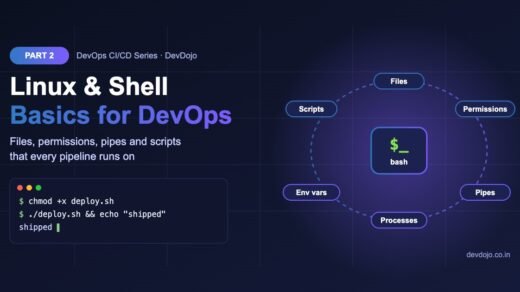
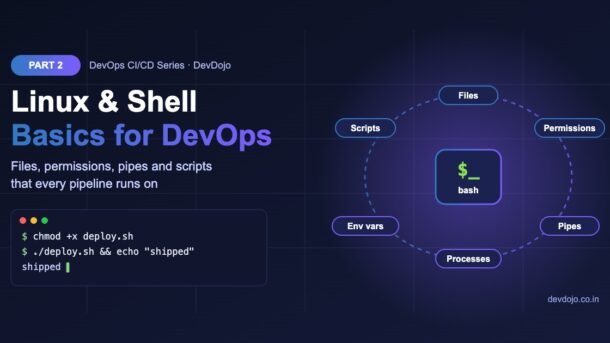
In Part 1 you built a small pipeline and saw that every run: line was a shell command running on a Linux machine. That is why Linux for DevOps is the first real skill in this series. CI runners, Docker containers, cloud servers and Kubernetes nodes almost all run Linux, and you talk to them through a shell. In this part you will learn the Linux commands and shell basics that DevOps engineers use every day: moving around the file system, file permissions, pipes and logs, environment variables, exit codes and processes. Then you will write two real scripts, a log report and a health check, and run them inside a GitHub Actions pipeline.
- A shell (usually bash) is the program that reads your commands. Pipelines, Dockerfiles and servers all use it.
- Learn about 25 core commands:
ls,cd,mkdir,cp,mv,cat,grep,awk,chmod,ps,curland friends. - Permissions (
rwx, numbers like 755 and 600) decide who can read, change or run a file. “Permission denied” is the most common pipeline error. - Pipes (
|) and redirection (>,>>,2>) join small tools into powerful one-liners. - Every command returns an exit code: 0 means success, anything else means failure. CI tools use it to decide if a step passed.
- Start every script with
set -euo pipefail, quote your variables and check scripts with ShellCheck.
Full DevOps CI/CD roadmap (30 parts)
Beginner
- What Is DevOps and How Does CI/CD Work?
- Linux and Shell Basics Every DevOps Engineer Needs You are here
- Git for Teams: Branches, Pull Requests and Trunk-Based Development Coming soon
- Automated Testing for Pipelines: Unit, Integration and End-to-End Coming soon
- Your First CI Pipeline with GitHub Actions Coming soon
- Docker Basics: Images, Containers and Dockerfiles Coming soon
- Writing Small, Secure, Production-Ready Dockerfiles Coming soon
- Container Registries and Image Versioning Coming soon
- Build Artifacts, Versioning and Semantic Releases Coming soon
- Continuous Delivery vs Continuous Deployment: Your First Release Pipeline Coming soon
Intermediate
- Environments, Configuration and Secrets Management Coming soon
- GitHub Actions Deep Dive: Matrix Builds, Caching and Reusable Workflows Coming soon
- GitLab CI/CD and Jenkins: How Other CI Tools Work Coming soon
- Infrastructure as Code with Terraform Coming soon
- Configuration Management with Ansible Coming soon
- Kubernetes Essentials for CI/CD Coming soon
- Packaging Apps for Kubernetes with Helm and Kustomize Coming soon
- GitOps with Argo CD Coming soon
- Deployment Strategies: Rolling, Blue-Green and Canary Coming soon
- Feature Flags and Progressive Delivery Coming soon
Advanced
- DevSecOps: Code, Dependency and Container Scanning in CI Coming soon
- Software Supply Chain Security: SBOMs, Signing and SLSA Coming soon
- Observability: Metrics, Logs and Traces with Prometheus, Grafana and OpenTelemetry Coming soon
- Alerts, SLOs and Incident Response Coming soon
- Fast CI for Monorepos: Affected Builds and Remote Caching Coming soon
- Self-Hosted Runners and Scaling CI Cost-Effectively Coming soon
- Platform Engineering and Internal Developer Platforms Coming soon
- AI in DevOps: AI Code Review and Agentic Pipelines Coming soon
- Measuring DevOps with DORA Metrics Coming soon
- Final Project: A Complete Pipeline from Commit to Production Coming soon
Why Linux for DevOps matters
When you write runs-on: ubuntu-latest in a GitHub Actions file, GitHub gives you a fresh Ubuntu Linux machine. When you build a Docker image, it is based on a small Linux system such as Debian or Alpine. When you deploy to AWS, Azure, Google Cloud or a Kubernetes cluster, your app almost always runs on Linux. So if you can work comfortably in a Linux shell, you can understand and fix every step of a pipeline.
RUN line in a Dockerfile is a shell command. You will use this from Part 6.Terminal, shell and the Linux file system
Three words are often mixed up, so let us make them clear:
- Terminal – the window you type in (Windows Terminal, macOS Terminal, the VS Code terminal).
- Shell – the program inside the terminal that reads your command, runs it and prints the result. bash is the most common shell on Linux servers and CI runners; macOS uses zsh by default, which works almost the same for everything in this post.
- Prompt – the
$sign that says “I am ready”. In this series, lines that start with$are commands you type; do not type the$itself.
wsl --install in an administrator PowerShell, restart, and you get a real Ubuntu terminal. Everything in this series works there.Linux has one big folder tree that starts at / (called “root”). There are no drive letters like C:. These are the folders you will meet most often in DevOps work:
| Folder | What lives there | DevOps example |
|---|---|---|
/ | The top of the tree | Every absolute path starts here |
/home/<user> (or ~) | Your personal files | On a GitHub runner your code is checked out under /home/runner/work/ |
/etc | System and app configuration | /etc/nginx/nginx.conf, /etc/hosts |
/var/log | Log files | /var/log/nginx/access.log |
/usr/bin, /usr/local/bin | Installed programs | Where git, node and docker live |
/tmp | Temporary files, often cleared on reboot | Scratch files in a pipeline |
/opt, /srv | Extra software and served data | A common place to deploy an app |
A path that starts with / is absolute (it works from anywhere). A path without it, like logs/app.log, is relative to the folder you are in now. Many “file not found” errors in CI happen because a script was run from a different folder than you expected.
Essential Linux commands for DevOps: files and folders
Let us create a small project layout, write a config file and move things around. Click ▶ Run to see the real output of each command.
# Where am I? Then create a small project layout
pwd
mkdir -p myapp/config myapp/logs
cd myapp
touch app.log
echo "PORT=8080" > config/app.env
echo "MODE=production" >> config/app.env
cat config/app.env
cp config/app.env config/app.env.bak
mv app.log logs/
ls -R$ pwd
/home/dev
$ mkdir -p myapp/config myapp/logs
$ cd myapp
$ touch app.log
$ echo "PORT=8080" > config/app.env
$ echo "MODE=production" >> config/app.env
$ cat config/app.env
PORT=8080
MODE=production
$ cp config/app.env config/app.env.bak
$ mv app.log logs/
$ ls -R
.:
config
logs
./config:
app.env
app.env.bak
./logs:
app.logClick ▶ Run to open the terminal panel. Every line starting with $ is a command; the lines below it are what the shell printed.
Notice the difference between > and >>: the first one creates or overwrites a file, the second one adds a line at the end. Overwriting a config file by mistake with > is a classic beginner bug, so slow down when you type it.
Here is a cheat sheet of the commands you will use most. Click a tab to switch the group:
| Command | What it does |
|---|---|
pwd | Print the folder you are in |
ls -la | List files, including hidden ones (names starting with a dot), with details |
cd /var/log, cd .., cd ~ | Change folder: absolute path, one level up, your home folder |
mkdir -p a/b/c | Create folders, including missing parents, without errors if they exist |
cp -r src dest / mv old new | Copy (recursively for folders) / move or rename |
rm file / rm -r folder | Delete permanently – there is no recycle bin |
find . -name "*.log" | Find files by name below the current folder |
| Command | What it does |
|---|---|
chmod +x deploy.sh | Make a script executable |
chmod 644 file / chmod 600 .env | Owner can write, everyone can read / only the owner can read and write |
chown app:app /srv/app | Change the owner and group of a file or folder |
whoami, id | Show your user name, user ID and groups |
sudo command | Run one command as the administrator (root) |
stat file | Show permissions, owner, size and times of a file |
| Command | What it does |
|---|---|
cat, less | Print a file / scroll through a long file (press q to quit) |
head -n 20, tail -n 20, tail -f | First lines, last lines, follow a growing log live |
grep -i "error" app.log | Show lines that match a word (-i ignores case, -c counts, -r searches folders) |
awk '{print $1}' | Print a column (fields are split by spaces) |
sort | uniq -c | Group equal lines and count them |
wc -l | Count lines |
sed 's/old/new/g' | Find and replace text in a stream or file |
| Command | What it does |
|---|---|
ps aux, top / htop | List running processes / live CPU and memory view |
kill PID, kill -9 PID | Ask a process to stop / force it to stop (last resort) |
systemctl status|restart name | Check or restart a background service |
journalctl -u name -f | Follow the logs of a service |
curl -I https://site | Call a URL and show only the response headers |
ss -tlnp | Show which ports are open and which program listens |
df -h, free -h | Free disk space / free memory, in human-readable units |
rm. Linux has no recycle bin. rm -rf deletes everything inside a folder without asking. In scripts, never run rm -rf "$DIR/" without checking that $DIR is not empty first – set -u (see below) helps protect you.File permissions: read, write and execute
Every file on Linux has an owner, a group and a set of permissions for three kinds of people: the owner, members of the group, and everyone else (“others”). Each of them can have r (read), w (write) and x (execute) permission. You see them as a 10-character string like -rwxr-xr-x, or as a 3-digit number like 755.
chmod 755 gives exactly this permission.Now let us see the most famous DevOps error and how to fix it:
# Create a tiny deploy script and try to run it
printf '#!/usr/bin/env bash\necho "Deploying..."\n' > deploy.sh
stat -c '%A %a %n' deploy.sh
./deploy.sh
# Give the owner execute permission, then run again
chmod +x deploy.sh
stat -c '%A %a %n' deploy.sh
./deploy.sh
# Secrets: only the owner may read or write
echo "DB_PASSWORD=change-me" > .env
chmod 600 .env
stat -c '%A %a %n' .env$ printf '#!/usr/bin/env bash\necho "Deploying..."\n' > deploy.sh
$ stat -c '%A %a %n' deploy.sh
-rw-r--r-- 644 deploy.sh
$ ./deploy.sh
bash: ./deploy.sh: Permission denied
$ chmod +x deploy.sh
$ stat -c '%A %a %n' deploy.sh
-rwxr-xr-x 755 deploy.sh
$ ./deploy.sh
Deploying...
$ echo "DB_PASSWORD=change-me" > .env
$ chmod 600 .env
$ stat -c '%A %a %n' .env
-rw------- 600 .envClick ▶ Run. The first ./deploy.sh fails with “Permission denied” because new files are not executable; after chmod +x it works.
Three permission numbers cover almost every case:
| Number | String | Use it for |
|---|---|---|
755 | rwxr-xr-x | Scripts and folders: everyone can read and run, only the owner can change |
644 | rw-r--r-- | Normal files such as code and config |
600 | rw------- | Secrets: .env files, SSH private keys (SSH refuses keys that others can read) |
chmod +x script.sh and commit, or use git update-index --chmod=+x script.sh on Windows. Then your CI step can run ./script.sh without a separate chmod step.The special user root can do anything. Instead of logging in as root, you run single commands with sudo. On GitHub-hosted runners the runner user can use sudo without a password, which is handy for sudo apt-get install. Inside Docker containers you should do the opposite and run your app as a normal user – we will do that in Part 7.
Pipes, redirection and reading logs
Linux tools are small and do one thing well. The pipe | connects them: the output of the left command becomes the input of the right command. Together with redirection you can turn a messy log file into a clear report in one line.
| Symbol | Meaning | Example |
|---|---|---|
| | Send output to the next command | cat app.log | grep ERROR |
> | Write output to a file (overwrite) | npm test > result.txt |
>> | Append output to a file | echo "done" >> deploy.log |
2> | Write errors (stderr) to a file | build.sh 2> errors.txt |
2>&1 | Send errors to the same place as normal output | build.sh > all.log 2>&1 |
We will use this small web server log for the rest of the post (save it as logs/access.log). The 9th column is the HTTP status code:
# logs/access.log - sample web server log used in this part
10.0.0.5 - - [28/Oct/2026:10:01:12 +0530] "GET / HTTP/1.1" 200 512
10.0.0.7 - - [28/Oct/2026:10:01:15 +0530] "GET /api/products HTTP/1.1" 200 2048
10.0.0.5 - - [28/Oct/2026:10:01:19 +0530] "POST /api/cart HTTP/1.1" 201 128
10.0.0.9 - - [28/Oct/2026:10:02:03 +0530] "GET /api/products HTTP/1.1" 500 64
10.0.0.5 - - [28/Oct/2026:10:02:10 +0530] "GET /api/orders HTTP/1.1" 200 1024
10.0.0.7 - - [28/Oct/2026:10:02:44 +0530] "GET /login HTTP/1.1" 200 640
10.0.0.12 - - [28/Oct/2026:10:03:01 +0530] "GET /api/products HTTP/1.1" 502 64
10.0.0.5 - - [28/Oct/2026:10:03:20 +0530] "GET /api/products HTTP/1.1" 200 2048
10.0.0.7 - - [28/Oct/2026:10:03:41 +0530] "GET /missing HTTP/1.1" 404 32
10.0.0.9 - - [28/Oct/2026:10:04:05 +0530] "GET / HTTP/1.1" 200 512# Show only server errors (status 500-599)
grep -E '" 5[0-9]{2} ' logs/access.log
# How many requests hit the products API?
grep -c "/api/products" logs/access.log
# Count requests per status code, most common first
awk '{print $9}' logs/access.log | sort | uniq -c | sort -rn
# The last 2 lines (use tail -f to follow a live log)
tail -n 2 logs/access.log
# Save 404s to a file, then read it
grep " 404 " logs/access.log > not-found.txt
cat not-found.txt$ grep -E '" 5[0-9]{2} ' logs/access.log
10.0.0.9 - - [28/Oct/2026:10:02:03 +0530] "GET /api/products HTTP/1.1" 500 64
10.0.0.12 - - [28/Oct/2026:10:03:01 +0530] "GET /api/products HTTP/1.1" 502 64
$ grep -c "/api/products" logs/access.log
4
$ awk '{print $9}' logs/access.log | sort | uniq -c | sort -rn
6 200
1 502
1 500
1 404
1 201
$ tail -n 2 logs/access.log
10.0.0.7 - - [28/Oct/2026:10:03:41 +0530] "GET /missing HTTP/1.1" 404 32
10.0.0.9 - - [28/Oct/2026:10:04:05 +0530] "GET / HTTP/1.1" 200 512
$ grep " 404 " logs/access.log > not-found.txt
$ cat not-found.txt
10.0.0.7 - - [28/Oct/2026:10:03:41 +0530] "GET /missing HTTP/1.1" 404 32Click ▶ Run to see what each command finds in the sample log.
The awk '{print $9}' | sort | uniq -c | sort -rn pattern is worth remembering: change $9 to $1 and you get the top IP addresses; change it to $7 and you get the most requested URLs. On a real server you would point it at /var/log/nginx/access.log, and use tail -f to watch new requests arrive live while you test a deployment.
Environment variables and exit codes
Environment variables are named values that a shell passes to every program it starts. Pipelines use them everywhere: NODE_ENV=production, DATABASE_URL, API keys from secrets, and built-in values such as GITHUB_SHA (the commit being built) and CI=true. You read a variable with $NAME or ${NAME}, and you can give a default with ${NAME:-default}.
The second idea is the exit code. Every command ends with a number: 0 means success and anything from 1 to 255 means failure. $? holds the exit code of the last command. This number is how CI tools decide if a step passed – if any command in a step exits with a non-zero code, the step turns red and the pipeline stops.
# Set a variable for this shell and every program it starts
export APP_ENV=staging
echo "Deploying to $APP_ENV"
# Use a default when a variable is not set
echo "Port is ${PORT:-3000}"
# Every command returns an exit code: 0 = success
ls /does-not-exist; echo "exit code: $?"
# && runs the next command only on success, || only on failure
mkdir -p build && echo "build folder ready"
false || echo "previous command failed, running fallback"$ export APP_ENV=staging
$ echo "Deploying to $APP_ENV"
Deploying to staging
$ echo "Port is ${PORT:-3000}"
Port is 3000
$ ls /does-not-exist; echo "exit code: $?"
ls: cannot access '/does-not-exist': No such file or directory
exit code: 2
$ mkdir -p build && echo "build folder ready"
build folder ready
$ false || echo "previous command failed, running fallback"
previous command failed, running fallbackClick ▶ Run. Notice exit code: 2 after the failing ls, and how && and || choose what runs next.
export are only visible in the current shell, not in programs it starts. And each run: step in GitHub Actions starts a new shell, so a plain export does not carry over to the next step – write echo "NAME=value" >> "$GITHUB_ENV" instead. We will go deeper into configuration and secrets in Part 11.Processes and services
A process is a running program. Each one has a number called a PID. You need a few commands to see what is running, run things in the background and stop them:
# List processes (PID = process ID, COMMAND = program name)
ps -eo pid,comm | head -3
# Start a long command in the background with &
sleep 300 &
# See background jobs of this shell, then stop job 1
jobs
kill %1$ ps -eo pid,comm | head -3
PID COMMAND
1 process_api
2 kthreadd
$ sleep 300 &
[1] 381
$ jobs
[1]+ Running sleep 300 &
$ kill %1
[1]+ Terminated sleep 300Click ▶ Run to see the example output. Use kill PID first and keep kill -9 as a last resort, because it gives the program no chance to clean up.
On servers, long-running programs such as web servers and databases run as services, managed by systemd. You will not need these inside a CI runner, but you will need them the first time you log in to a server to check why a site is down:
# On a Linux server that uses systemd (Ubuntu, Debian, RHEL...)
$ sudo systemctl status nginx      # is the web server running?
$ sudo systemctl restart nginx     # restart after a config change
$ sudo journalctl -u nginx -n 50   # last 50 log lines of the service
$ ss -tlnp                          # which programs listen on which ports
$ df -h && free -h                  # disk space and memory
Your first DevOps shell scripts
A shell script is a text file full of commands that run from top to bottom. Let us write two scripts that real teams use in pipelines:
- log-report.sh – reads an access log, prints a summary and fails (exit code 1) if too many requests were server errors. You could run it after a canary deployment to decide whether to continue.
- healthcheck.sh – waits until a URL answers with HTTP 200, trying a few times. You run it right after a deploy, or before end-to-end tests.
The third tab shows a GitHub Actions workflow that runs both scripts on every push, just like the pipeline you built in Part 1.
#!/usr/bin/env bash
# log-report.sh - summarise a web server access log and fail on too many errors.
# Usage: ./log-report.sh logs/access.log
set -euo pipefail

LOG_FILE="${1:?Usage: $0 <access-log-file>}"
MAX_ERROR_PCT="${MAX_ERROR_PCT:-25}"   # override with an environment variable

if [[ ! -f "$LOG_FILE" ]]; then
  echo "ERROR: file not found: $LOG_FILE" >&2
  exit 2
fi

total=$(wc -l < "$LOG_FILE")
errors=$(awk '$9 >= 500' "$LOG_FILE" | wc -l)
error_pct=$(( errors * 100 / total ))

echo "Requests : $total"
echo "5xx errors: $errors ($error_pct%)"
echo "Top IPs:"
awk '{print $1}' "$LOG_FILE" | sort | uniq -c | sort -rn | head -3

if (( error_pct > MAX_ERROR_PCT )); then
  echo "FAIL: error rate $error_pct% is above $MAX_ERROR_PCT%" >&2
  exit 1
fi
echo "OK: error rate is within the limit"$ ./log-report.sh logs/access.log
Requests : 10
5xx errors: 2 (20%)
Top IPs:
4 10.0.0.5
3 10.0.0.7
2 10.0.0.9
OK: error rate is within the limit
$ MAX_ERROR_PCT=10 ./log-report.sh logs/access.log; echo "exit code: $?"
Requests : 10
5xx errors: 2 (20%)
Top IPs:
4 10.0.0.5
3 10.0.0.7
2 10.0.0.9
FAIL: error rate 20% is above 10%
exit code: 1#!/usr/bin/env bash
# healthcheck.sh - wait until a URL answers with HTTP 200, or give up.
# Usage: ./healthcheck.sh http://localhost:8080/ [retries] [delay-seconds]
set -euo pipefail
url="${1:?Usage: $0 <url> [retries] [delay]}"
retries="${2:-5}"
delay="${3:-2}"
check() {
# -s silent, -o discard body, -w print only the status code
curl -s -o /dev/null -w '%{http_code}' --max-time 3 "$1" || true
}
for (( i = 1; i <= retries; i++ )); do
code=$(check "$url")
echo "[$i/$retries] $url -> HTTP $code"
if [[ "$code" == "200" ]]; then
echo "Service is healthy"
exit 0
fi
sleep "$delay"
done
echo "Service did not become healthy after $retries tries" >&2
exit 1# Terminal 1: python3 -m http.server 8080 (started a few seconds late)
$ ./healthcheck.sh http://localhost:8080/ 5 2
[1/5] http://localhost:8080/ -> HTTP 000
[2/5] http://localhost:8080/ -> HTTP 000
[3/5] http://localhost:8080/ -> HTTP 200
Service is healthy
$ ./healthcheck.sh http://localhost:9999/ 3 1; echo "exit code: $?"
[1/3] http://localhost:9999/ -> HTTP 000
[2/3] http://localhost:9999/ -> HTTP 000
[3/3] http://localhost:9999/ -> HTTP 000
Service did not become healthy after 3 tries
exit code: 1# .github/workflows/scripts.yml - run our shell scripts on every push
name: Script checks
on:
push:
branches: [main]
pull_request:
jobs:
checks:
runs-on: ubuntu-latest # a fresh Linux machine for every run
steps:
- uses: actions/checkout@v6
- name: Lint the shell scripts
run: shellcheck *.sh # ShellCheck is preinstalled on Ubuntu runners
- name: Fail if the error rate is too high
env:
MAX_ERROR_PCT: 25
run: ./log-report.sh logs/access.log
- name: Start a test web server in the background
run: python3 -m http.server 8080 &
- name: Wait until it answers
run: ./healthcheck.sh http://localhost:8080/ 10 2Click the tabs to switch files, then ▶ Run on each script to see real output, including the failing cases with exit code 1.
Let us walk through the important lines of log-report.sh:
#!/usr/bin/env bash– the shebang. It tells Linux to run the file with bash, wherever bash is installed."${1:?Usage: ...}"–$1is the first argument.:?stops the script with a helpful message if it is missing."${MAX_ERROR_PCT:-25}"– read a setting from an environment variable, with a default. The pipeline sets it in theenv:block.[[ ! -f "$LOG_FILE" ]]– a test: “is this not a regular file?”.>&2sends the error message to stderr.$(...)– command substitution: run a command and store its output in a variable.$(( ... ))and(( ... ))– whole-number maths and number comparisons.exit 1– a non-zero exit code makes the CI step fail. This is how a script “blocks” a bad release.
Create the files, make them executable and commit them:
# Make the scripts executable once (Git remembers the x bit)
$ chmod +x log-report.sh healthcheck.sh
$ git add . && git commit -m "Add log report and health check scripts"
# Check them for common mistakes before pushing
$ shellcheck *.sh
Writing safe scripts: set -euo pipefail, quoting and ShellCheck
By default bash is very forgiving: if a command fails, it just continues with the next line. That is dangerous in a deploy script. Put this line at the top of every script:
| Option | What it does | Why it matters |
|---|---|---|
set -e | Exit as soon as a command fails | A failed build does not go on to deploy |
set -u | Treat unset variables as an error | A typo like $DIRR stops the script instead of becoming an empty string |
set -o pipefail | A pipeline fails if any part fails | Without it, broken-cmd | sort looks successful because sort worked |
Always quote variables: write "$FILE", not $FILE. Without quotes, a file name with a space (my report.txt) is split into two words and your command breaks in strange ways.
Use ShellCheck: ShellCheck is a free linter that finds bugs in shell scripts, such as missing quotes or wrong tests. Both scripts in this post pass shellcheck with no warnings, and our workflow runs it on every push. The GNU Bash Reference Manual is the official place to look up any bash feature.
Common errors and how to fix them
| Error message | Why it happens | Fix |
|---|---|---|
Permission denied | The script is not executable, or you cannot read/write that path | chmod +x script.sh and commit it; check owners with ls -l; use sudo only for system paths |
command not found | The tool is not installed, or not in $PATH, or you forgot ./ | Install it (sudo apt-get install -y jq); run local scripts as ./script.sh; check with which tool |
No such file or directory | Wrong relative path; the script ran from another folder | Print pwd; use paths relative to the repo root; in scripts use cd "$(dirname "$0")" |
/usr/bin/env: 'bash\r': No such file or directory | The file has Windows line endings (CRLF) | Run sed -i 's/\r$//' script.sh and add *.sh text eol=lf to .gitattributes |
unbound variable | set -u caught a variable that was never set | Set it, or give a default: ${NAME:-default} |
| CI step “passes” although a command failed | No set -e, or the failure was hidden inside a pipe | Add set -euo pipefail at the top of the script |
No space left on device | The disk is full (often old logs or Docker images) | Check with df -h and du -sh /var/log/*; clean with docker system prune |
Best practices for Linux and shell in DevOps
- Keep scripts in the repository next to the code, so the pipeline and your laptop run exactly the same commands.
- Start every script with
#!/usr/bin/env bashandset -euo pipefail. - Quote every variable and run ShellCheck in CI.
- Make scripts safe to run twice (idempotent): use
mkdir -p, check before you delete, and do not append the same line twice. - Print clear messages and send errors to stderr (
>&2), so CI logs are easy to read. - Never hard-code secrets in scripts. Read them from environment variables that come from your CI secret store.
- Give secret files 600 permissions and never commit
.envfiles. - Use long option names in shared scripts (
--silentinstead of-s) when it helps teammates read them.
Practice task
Build a tiny “release gate” script. Use the sample log from this post.
- Copy
log-report.shand add a second check: fail if there are more than 2 requests with status404. Use an environment variableMAX_404with a default of 2. - Print the top 3 most requested URLs (hint: the 7th column,
$7). - Add one more line to
logs/access.logwith a 404, run the script again and check that the exit code (echo $?) changes. - Run
shellcheckon your script and fix every warning. - Bonus: push it to GitHub with the
scripts.ymlworkflow and watch the pipeline fail and then pass as you changeMAX_404.
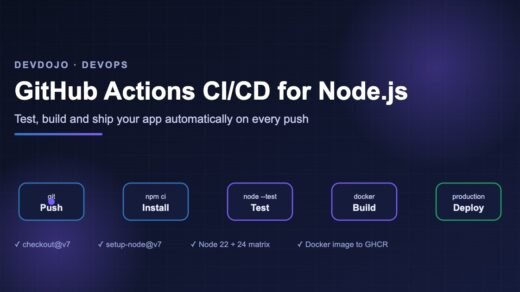
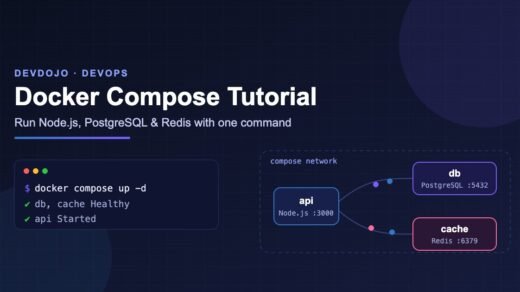
Want more pipeline practice right now? Our GitHub Actions CI/CD for Node.js guide shows a full Node.js workflow, and the Docker Compose tutorial uses many of the commands from this post.
Frequently asked questions
How much Linux do I need to know for DevOps?
For a beginner DevOps role you need the basics in this post: navigating files, permissions, pipes and text tools, environment variables, processes, services and simple scripts. Deeper topics such as networking, storage and kernel tuning come later with experience.
Should I learn bash or zsh?
Learn bash. It is the default shell on most Linux servers and CI runners, and almost everything you learn works the same in zsh, which macOS uses by default. Write your scripts for bash with #!/usr/bin/env bash.
Which Linux distribution should a DevOps beginner use?
Ubuntu is the easiest start: it is the default on GitHub Actions runners, very common in the cloud and has lots of tutorials. Later you will also meet Debian and Alpine in Docker images, and Red Hat-style systems (RHEL, Rocky Linux, Amazon Linux) in companies.
What does exit code 127 or 126 mean?
127 means “command not found” (the program is not installed or not in your PATH). 126 means the file was found but could not be executed, usually because it has no execute permission. 1 is a general error and 130 means you pressed Ctrl+C.
Can I practise Linux on Windows?
Yes. Install WSL with wsl --install to get a full Ubuntu terminal inside Windows. You can also use Git Bash for simple commands, or a free cloud shell from AWS, Google Cloud or Azure.
Conclusion
You now have the Linux for DevOps basics that every later part of this series builds on. You can move around the file system, read and change permissions, join tools with pipes to analyse logs, use environment variables and exit codes, manage processes and services, and write safe shell scripts that make a pipeline pass or fail for the right reasons. The best way to make these skills stick is to use the terminal every day – try doing your next small task without the mouse.
Later in the series these skills will come back again and again: in Dockerfiles, in Kubernetes debugging, in Terraform and Ansible, and in every pipeline step you write.
New posts every day on DevDojo
Follow the full DevOps CI/CD series – 30 parts from “what is DevOps” to a complete pipeline from commit to production. Bookmark devdojo.co.in and tell us in the comments which Linux command you use the most.